
Imagine you just set up your Business Profile and asked a few customers to leave reviews, but the “Write a review” button is missing. This is a common issue with new profiles, and it is often down to the opening date.
Google doesn’t disclose the exact reasons, but it’s likely there to prevent fake reviews on new listings. If a customer has asked you why they can’t leave a review on Google for you, this post answers that question from the owner’s side. Here’s the cause and the fix.
The most common cause: future opening date
In our experience, the most common reason the Review button is missing is that your Opening Date in the profile is set in the future.
The pattern we see: if the profile says the business hasn’t opened yet, the Review button tends to stay hidden until the opening date passes.
Where to check:
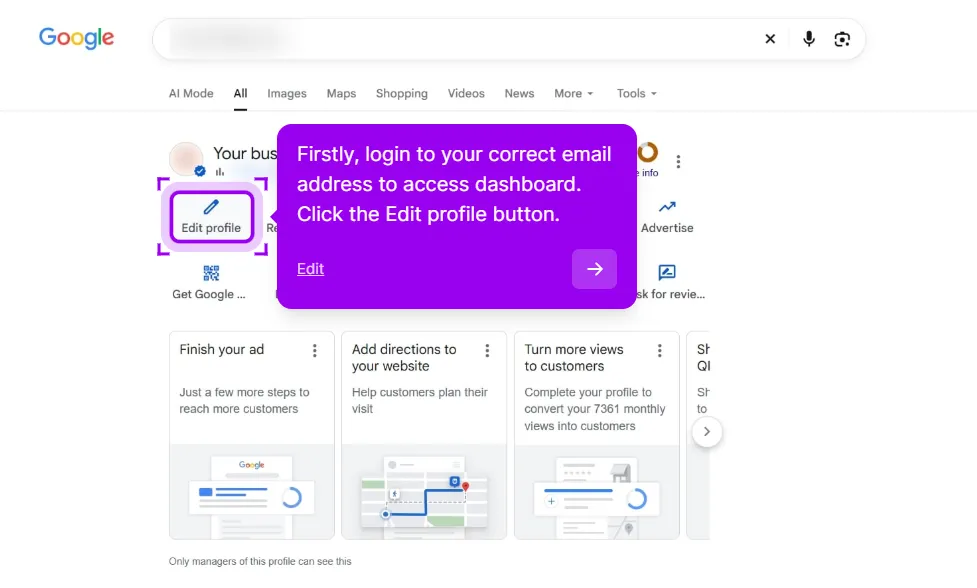
1. Open Edit profile from your dashboard
Sign in to your Business Profile dashboard and click Edit profile, or the equivalent option in your layout.
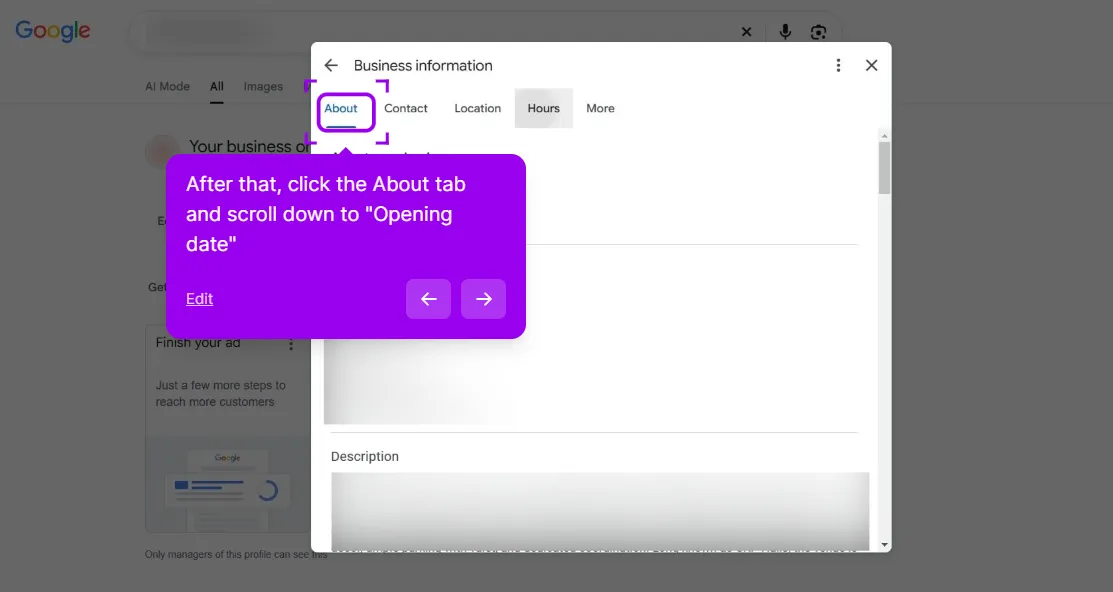
2. Open Business information and find Opening date
In the Business information panel, open the About tab and scroll down to Opening date. Some layouts label the section “From the business”.
3. Check the date that is set
Read the date already filled in. The Opening date block has Year, Month and Day fields, with Year and Month marked required, and a Save button underneath.
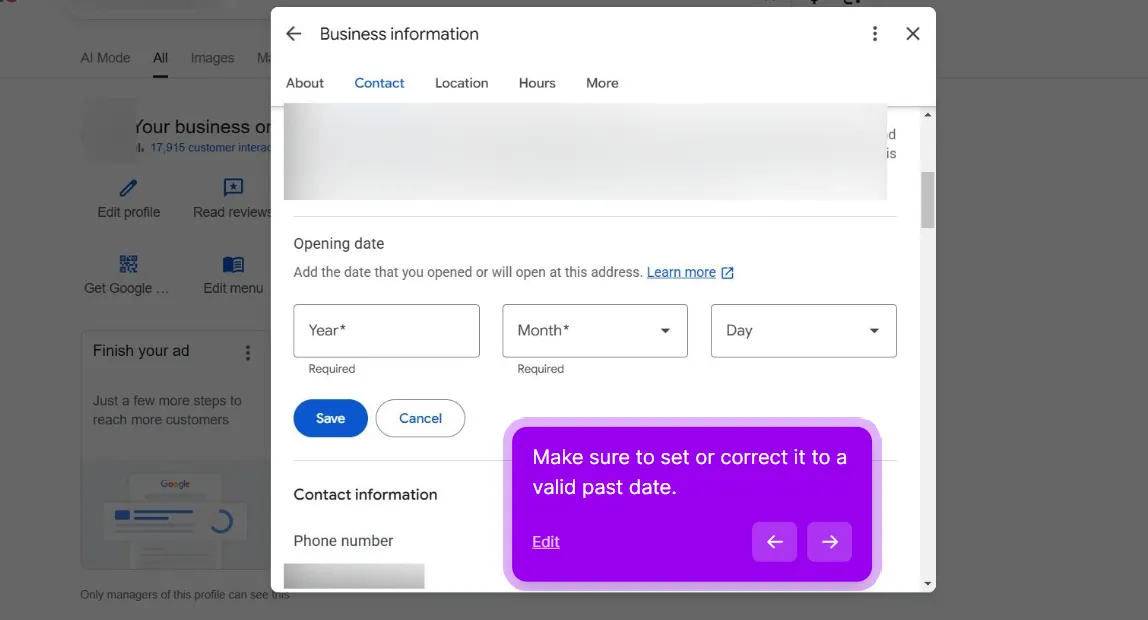
If the date is in the future (today is March 15 and the opening date is May 1), that’s why the button is missing.
The fix
Update the opening date to today or earlier. Save the change.
In the new profiles we’ve fixed, the button usually comes back within a day or two of the date passing. Not immediately, and Google doesn’t publish a number. Its system runs the visibility check on a schedule, not in real time.
If you genuinely just opened today, set today’s date and wait. If you’ve been open for months but listed a future date by mistake, set a date in the past (matching your actual opening).
What if the opening date is correct and reviews still aren’t enabled
Two other possibilities:
A brand-new profile still settling in
Even after the opening date passes, very new profiles sometimes keep the Review button hidden for a short while. Google doesn’t publish a number, but in our experience it tends to be a day or two while the profile establishes some real-world activity.
What to do: nothing. Wait. The button appears once that settling-in period is over.
Don’t make frequent edits to the profile during this period. A profile that’s constantly being edited looks suspicious to the spam filter and can drag things out.
Account-level restriction
If your underlying Google account has any restrictions (security alert, suspicious activity flag, age verification pending), some Business Profile features, including reviews, can be blocked.
Check myaccount.google.com for any notices. Resolve those and the Review button should return.
Address policy issues
If your profile’s address triggered a soft policy review (residential address shown publicly, address that doesn’t match a verifiable location), some features get restricted until the issue is resolved. The Review button is sometimes one of them.
In this case, the address policy issue needs to be resolved first. Either hide the address (set up as a Service-Area Business) or use an address that matches a verifiable business location with signage.
If the profile is still unverified or stuck in a pending state while you sort this out, our verification service can take it on.
Step-by-step troubleshooting
If you’re not sure which scenario applies:
- Check the opening date. Set it to today if it’s in the future.
- Give it a day or two. Don’t edit the profile during this period.
- Test the review URL. Generate your review link via Whitespark’s URL generator. Open it in an incognito window. If the link works, the button just hasn’t propagated to all surfaces yet (the listing card shows it within a day or two of the URL working).
- Check the account. Sign in to myaccount.google.com and resolve any restriction notices.
- Check the address. If it’s residential and showing publicly, hide it and set up as a Service-Area Business.
- If still blocked after a week, contact support via the GBP Help Form. Describe the issue and request a manual review. Support timelines and outcomes vary, so treat this as the official channel rather than a guaranteed fix.
What to tell customers in the meantime
If you’re actively asking customers to leave reviews and the button isn’t there, two options:
Direct review URL
Generate a review URL via Whitespark and send it directly to customers. The URL often works even when the button is hidden on the profile card. Customers click it, land on the review form, and leave a review.
Wait
If the issue is the opening date or a brand-new profile still settling in, the button usually returns within a day or two. Just ask customers to come back later. Better than asking them to navigate a confusing experience and possibly bouncing.
When to contact support
Worth contacting support:
- All troubleshooting steps above have been completed
- It’s been more than 7 days since the opening date passed (well past any new-profile settling-in)
- Your account is clean of restrictions
- The address is verified and policy-compliant
- The Review button is still not appearing
Not worth contacting support:
- Within the first 48 hours of fixing the opening date (just wait)
- While a brand-new profile is still settling in
- When the underlying issue is a policy violation that needs to be resolved first
A note on review velocity
Once the Review button returns, don’t flood your profile with reviews all at once. The spam filter watches new profiles aggressively, and a sudden burst of reviews on a days-old profile can trigger suppression.
Start slow by gathering a few reviews from genuinely happy customers, then gradually increase your review requests over the following weeks. This approach helps build trust with Google’s spam filter and reduces the chance of legitimate reviews being suppressed.
Review velocity is one of the triggers in the GBP suspension check, so if your profile gets flagged, that tool can help you identify the issue. Our Google review generation service can handle the review cadence and the follow-up for you.
This post is one piece of a bigger playbook. The full guide covers the common Google Business Profile problems in one place, with the fix for each: The GBP cheat sheet.
New profile still blocking reviews after a week? Send us your profile and we’ll find why, and tell you the change to make, free. Unlock my reviews


