Why Indian phone numbers get stuck on Pending
Google’s Product Experts confirm that in some regions, including India, Google takes extra steps to check that a phone number is accurate. While it reviews your edit, the number stays pending. Google can’t confirm every number, so edits can be rejected or changed by automated updates.
You’ll see one of three statuses:
- Accepted: the new number shows on your profile
- Pending: still under review, so the new number is not showing on your profile yet
- Not approved: Google couldn’t confirm the number is accurate
Google’s rules for a business phone number
These come from Google’s guidelines for representing your business:
- It connects to your individual business location, or you provide a website that represents it
- It’s a local number, not a central call-centre helpline, where possible
- It doesn’t redirect or refer people to other numbers or pages
- It’s under the direct control of the business
- It’s not a premium number, whatever the rate
- It’s not in your business name
Enter it as +91 followed by the 10-digit number, with no leading zero.
How to get your phone number approved, step by step
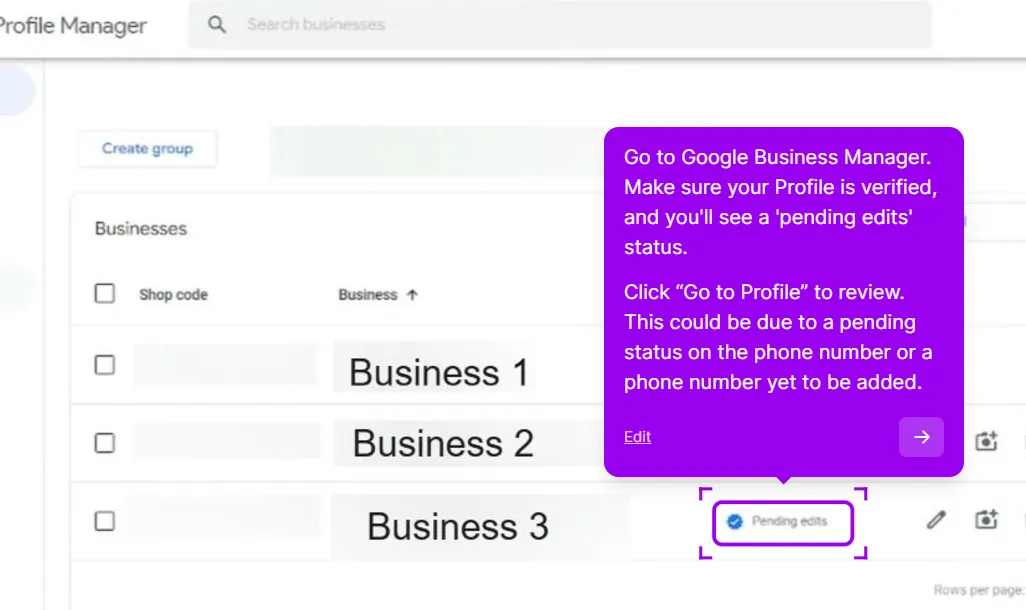
1. Check that your profile is verified
Unverified profiles can still have their phone number edited, but their content might not appear across Google. Check your verification status first.
2. Check your number against the rules above
Fix anything that doesn’t match before you edit. Google recommends this before submitting the edit.
3. Add or change the phone number
If you find anything wrong with the number currently on the profile, edit it.
Go to your Business Profile dashboard (formerly Google My Business) by searching “my business” on Google.
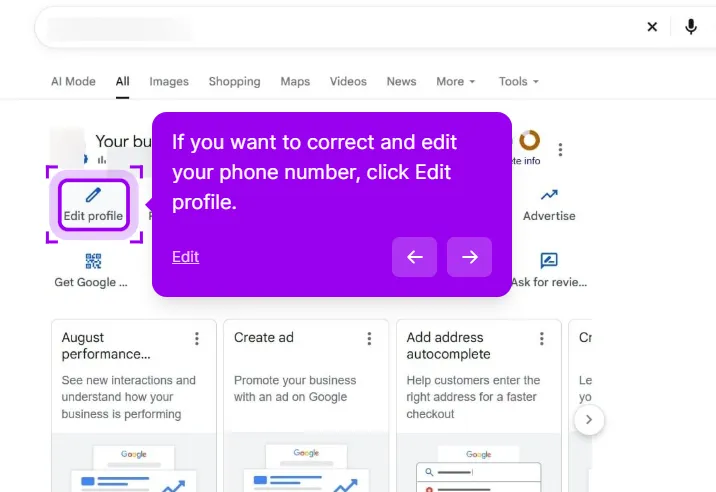
Click Edit profile, open Business information, then the Contact tab. Add or change the phone number and save.
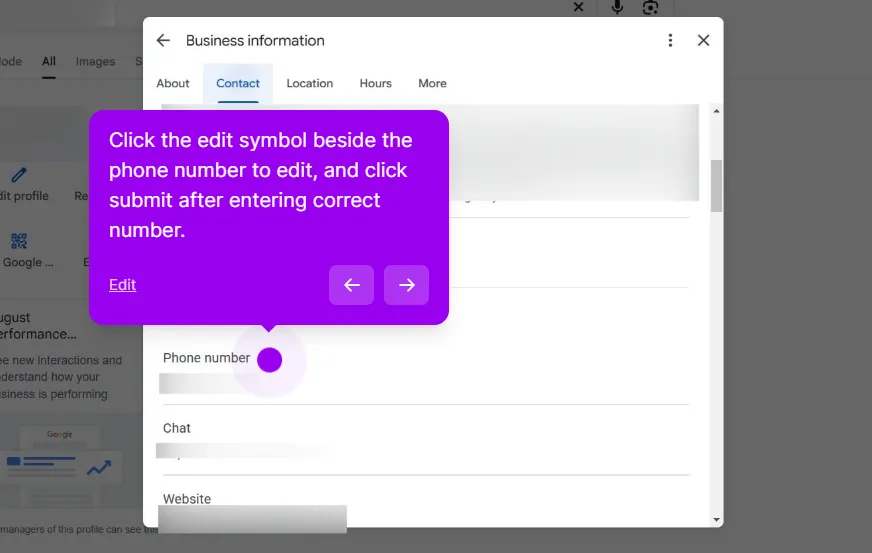
4. Check the edit status
Open the profile and check whether the edit says Pending, Accepted or Not approved. Google explains each status in its help page on what happens to your Business Profile edits.
5. Submit the India Phone Number Appeal form
Open support.google.com/business/contact/business_phone_pending_edits and fill in the whole form.
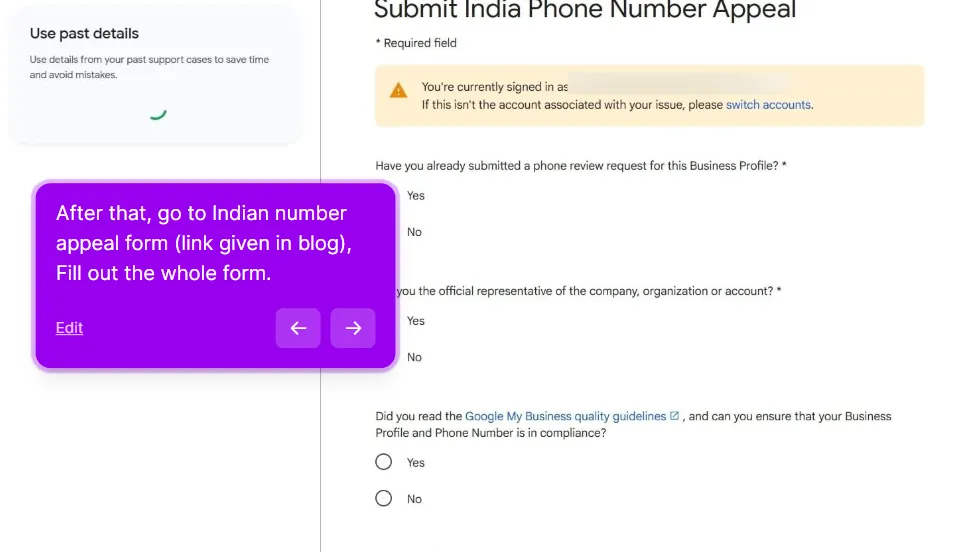
It asks for:
- Whether you’ve already submitted a phone review request for this profile
- Whether you’re the official representative of the business
- Whether you’ve read the quality guidelines and your number complies
- Your name, the official email used to manage the profile, business name and website
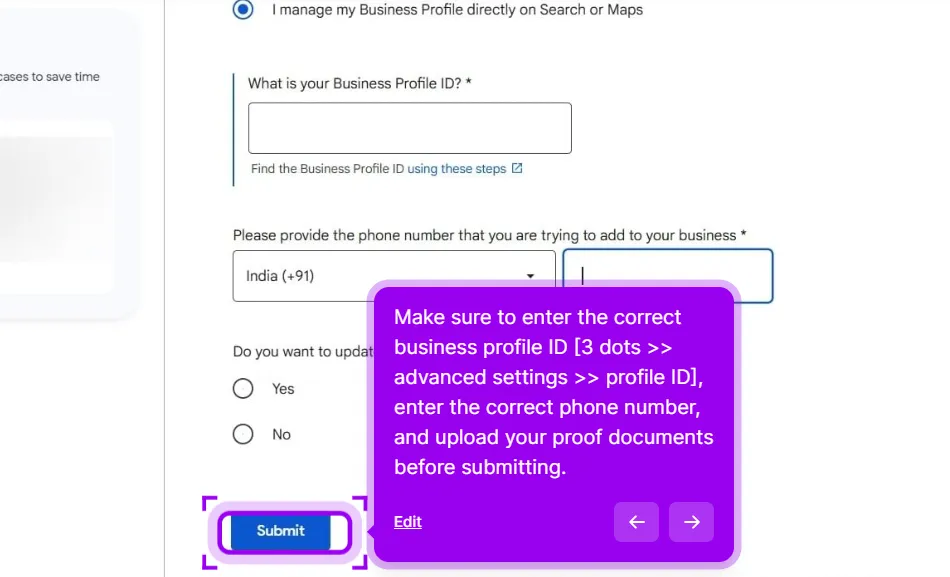
- Where you manage the profile: business.google.com, or directly on Search or Maps
- The Business Profile URL and Business Profile ID
- The phone number you’re adding, with India (+91) selected
- The phone type: Mobile or Landline/Other
- Upload proof documents
- Whether you’re updating 10 or more profiles. If yes, attach a file with each profile ID, proof of each ID and the numbers to update.
You’ll find the Business Profile ID in your profile’s three-dot menu, under the advanced settings.
6. Choose email or chat and save your case ID
The form offers both, with chat marked as recommended. Confirm your email using the link Google sends, as the page warns this avoids delays.
7. Reply to Google’s email
Google emails your business email address. Reply to that email, and a support specialist will investigate the edit.
8. Escalate if you’re stuck
Post in the GBP Community with your case ID. A Product Expert can escalate it.
Documents to keep ready
Google’s appeals page lists documents that strengthen an appeal: business registration, a business license, tax certificates, and utility bills such as a phone bill. The name and address on each document should match your profile.
Phone number verification by call or SMS
This is separate from number approval. If Phone or SMS appears as a verification option:
- Open your Business Profile and select Get verified
- Choose Phone or SMS
- Answer the call or open the text
- Enter the code on your profile
You must be able to answer the business number or receive texts. Automated IVR systems won’t receive the code. If other options are shown, you can try those instead.
What makes it worse
- Filing the same request more than once. Google’s appeals guidance says not to submit multiple appeals for the same issue before a decision.
- Creating a new profile while you wait. Google says not to create a new Business Profile for the same business while an appeal is under review.
- Using a number you don’t control, or one that redirects elsewhere.
This post is one piece of a bigger playbook. The full guide covers all 16 common Google Business Profile crises in one place: The GBP cheat sheet.
Number still on Pending after all that? Send it to us and a person tells you what is holding it, free. Check my phone number


