
The three things people mix up
- Your profile photos: You upload and manage these directly, no issue here.
- The Street View layer: This is Google’s base imagery, captured by the Street View car on its own schedule. A separate system from your profile.
- The “See outside” (Search) or “Street View & 360°” (Maps) panorama: Which existing Street View image your profile happens to display. Not a new photo, just a pointer to one that already exists.
Once you separate these, it’s clear why the obvious moves don’t work. You can’t delete the panorama since Google owns it, not you. And reporting it the way you’d report outdated imagery doesn’t touch which panorama is attached to your listing specifically, that form updates the general imagery layer.
Why Google shows the wrong building
Google links the “See outside” and “Street View & 360°” images to your map pin’s coordinates. If the pin sits even slightly off, Google attaches whatever panorama is nearest that point, which can be a neighbour’s wall, a back alley, or a different building entirely.
Step 1: Check where your map pin actually sits
Go to Edit profile > Location, click on the Adjust option on the map, and see where the pin lands relative to your building.
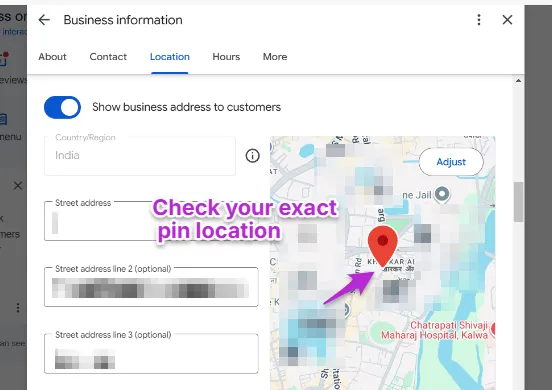
Step 2: Move the pin to your entrance
This is Google’s own fix, stated directly on its help page: edit the map pin to associate it with a more accurate Street View image.
- Edit profile > Location
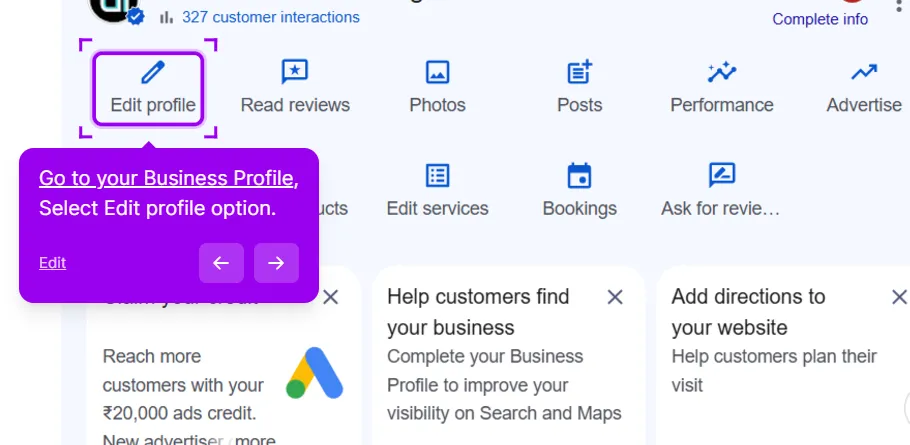
- Click the pencil next to Business location
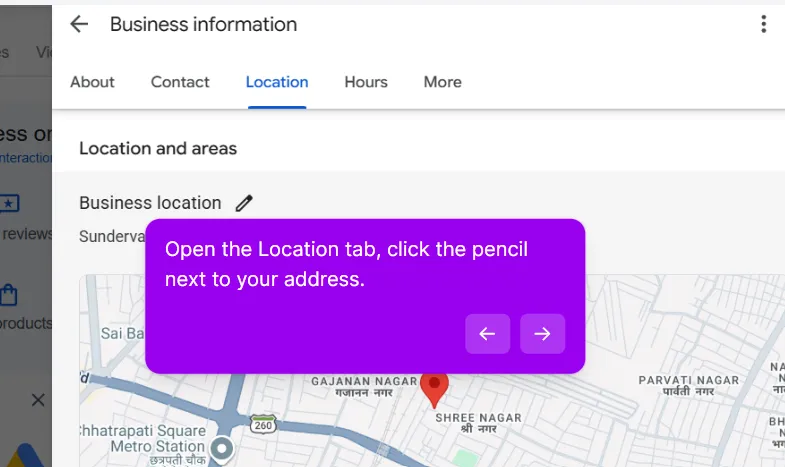
- Select Adjust and drag the pin to your actual entrance, as close to the front door as you can
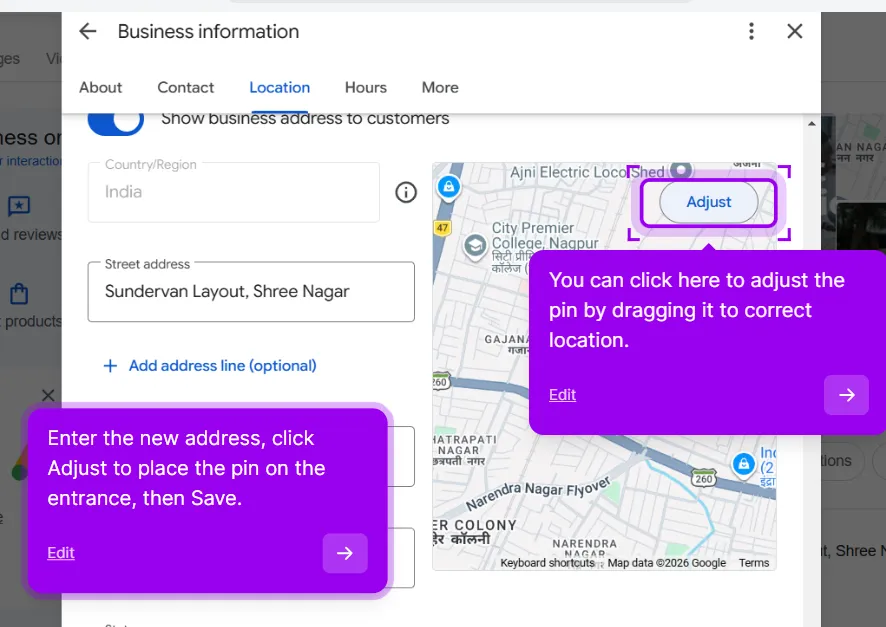
- Done, then Save
Google says profile changes usually show within about 10 minutes, sometimes up to 30 days for edits under review. The Knowledge Panel can lag a week behind even once the pin updates. This genuinely resolves it for a lot of businesses. It doesn’t for everyone, since the fix depends on there being a usable nearby panorama to begin with.
Step 3: Add your own imagery, since you can’t swap theirs
Neither of these replaces the existing panorama, both sit alongside it:
- Street View Studio: Upload your own 360 imagery to Google Maps. Note that Google’s Street View Studio only supports outdoor 360 video, not indoor. Learn how to upload to Street View Studio.
- A professional photographer: Google allows you to hire a photographer to capture an indoor Street View, which appears as its own separate experience on your profile. Learn more.
Worth knowing before you spend on a photographer: in a documented forum case, a live indoor photographer tour did not automatically update the Knowledge Panel’s “See outside” thumbnail. Treat this step as additive, not a guaranteed fix for that one thumbnail.
Step 4: A wrong AI location description is a separate fix
If Street View shows an AI-written description next to the wrong image (for example, says you’re inside a mall you’re not in), that text comes from a different system and doesn’t change through Edit profile. Use the Feedback tool at the bottom of the Maps result for this specifically.
Step 5: If the pin is already right and the image is just old or ugly
There’s no way to request a reshoot on demand. Google is explicit that it can’t commit to a timeline for updating imagery.
You can submit a report through Google’s outdated imagery form. Fill in the GPS coordinates, select Street View as the imagery type, and pick the most relevant issue category. This feeds into which areas get prioritised for a reshoot generally, not a guarantee for your listing.
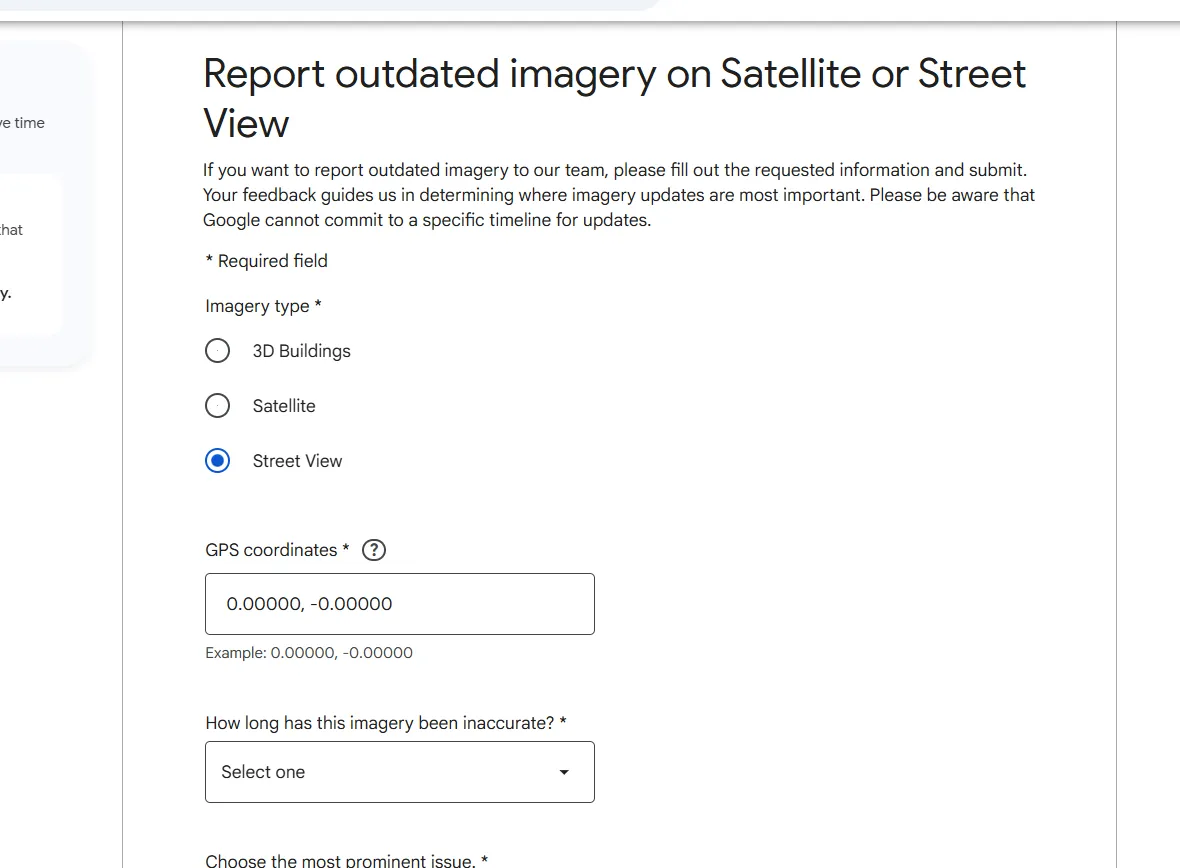
Best move while you wait: add fresh photos and your own 360 upload, so those show alongside the old image.
Step 6: When nothing above works, escalate
Here’s the part Product Experts are upfront about. There’s no owner-facing way to say “this exact panorama is wrong, attach a different one,” and regular support doesn’t have that tool either, which is why calling in usually just gets you told to move the pin or wait for the car.
I went through a real forum thread on this and watched it play out: pin moved four times, the image reported six times, nothing changed, until the owner posted in the community and a Product Expert personally flagged it to Google.
- Go to the Google Business Profile Community
- Post with your business name and address (leave your phone number out of the public post)
- Describe exactly what’s wrong and what you’ve already tried: pin moved, photos added, still showing X
- Wait. A Product Expert with the standing to escalate internally may pick it up, but this isn’t instant and isn’t guaranteed
What doesn’t help
- Reporting the same image repeatedly: One documented case tried six reports with zero change.
- Requesting a blur as a first move: It’s permanent, applies to the property rather than just your listing, and can make your location harder for Google to verify later. Save it for genuine privacy situations, not an unflattering angle.
- Expecting a trusted photographer tour to replace the thumbnail automatically: It adds a separate experience. It doesn’t reliably swap what’s shown for “See outside.”
This post is one piece of a bigger playbook. The full guide covers the common Google Business Profile problems in one place, with the fix for each: The GBP cheat sheet.
Pin moved and the wrong image still showing? Send us your profile and we’ll check where your pin sits and which panorama Google has attached, and tell you what to try next. Check my Street View


