
The five scenarios
1. Same business, small change to the name
Edit the name on your existing profile. Google says reviews remain after a minor name change. It publishes no examples of “minor”, so use its test: if the proper nouns in the name, the services it describes, or your primary category change, it’s not minor.
2. Several locations, all renamed
Google says you may also qualify for an in-place rename. Update each profile’s name.
3. Full rebrand with a new brand name
Google’s written rule is that this is a new business: mark the old profile as closed and create a new one under the new name. Closing steps are in our closing guide.
Reviews don’t follow automatically. Google’s review page names location and ownership changes as the cases where you can ask for a transfer, says not every change qualifies, and says it may remove irrelevant reviews after a significant change. A pure rebrand isn’t on that list, so you can ask, but don’t promise clients their reviews will move.
Some owners try the in-place edit anyway. Google’s policy says it may reject significant name changes, and in one documented forum case, renaming an acquired profile to the buyer’s own name ended in a suspension and a denied appeal. Pick one route. Running both leaves you with two profiles.
4. New owner, same name
Nothing to rename. Google’s own order is that the previous owner adds you as an owner, then transfers primary ownership. Reviews remain, and you can reply to old ones to explain what’s changed. Our walkthrough is in buying or selling a business.
5. New owner and a new name
Do scenario 4 first, then run the test in scenarios 1 to 3 for the name.
The safe order for editing your profile’s name
Step 1: Check your access
You need Owner or Primary owner on the profile. See how to transfer primary ownership.
Step 2: Change the real-world name first
Google wants the profile name to match your signage, stationery and other branding.
Step 3: Update your website and the listings Google can see
A Product Expert says name edits are rejected by an algorithm, not a person. It checks your site and other mentions, finds the old name at your address, and doesn’t trust the change.
Step 4: Edit the name
- Search your business name on Google, signed in to the account that manages it
- Click Edit profile
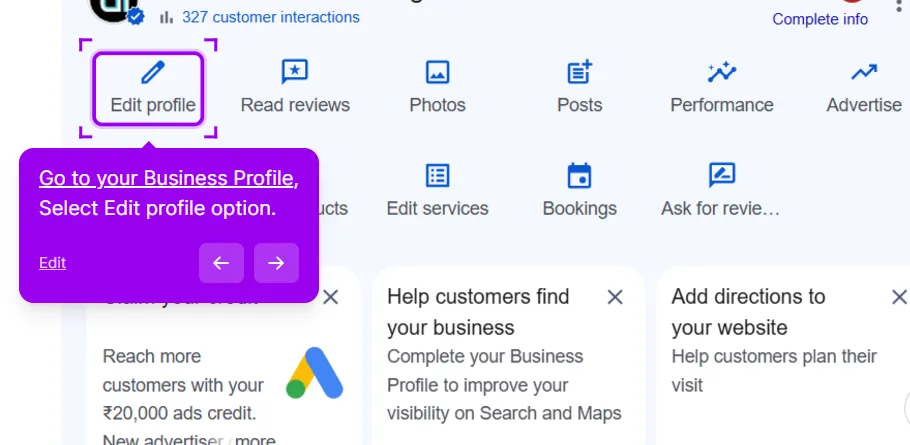
- Open Business information, click the pencil next to Business name and enter the new name as it appears on your signage
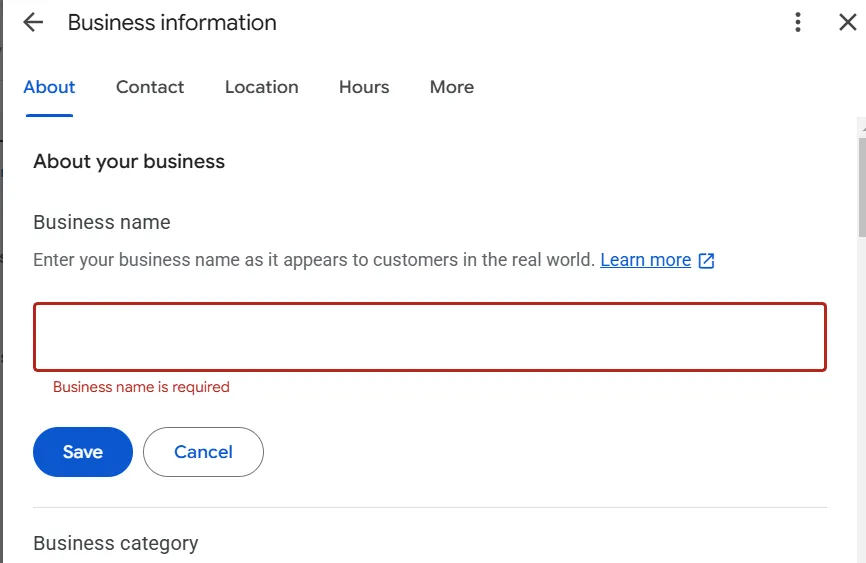
- Click Save
Step 5: Check the status
Google shows Accepted, Pending or Not approved. It says reviews usually take up to 10 minutes but can take up to 30 days. Leave the field alone while it’s Pending.
Step 6: Verify again if asked
Google says a name change after verification might require it. While you re-verify, don’t edit the name, address or category and don’t request a new code, because that cancels the code in the mail and sends a new one. Stuck? See verification stuck for 5 days.
If the edit is rejected
You may get an email citing “Business Identity Changed”. Google’s policy page lists identity change as a rejection reason: significant name or category changes can be refused, and a business that has changed significantly should be closed, not renamed.
- Run the minor-change test again. If the name fails it, switch to Google’s route in scenario 3.
- If it should qualify, use the Edits tool. Forum threads show support sending owners there, and it may route you to an appeal form. Attach proof of the new name, such as registration or DBA paperwork, signage photos and your updated website. Send one request.
- If the edit triggers a suspension, follow our reinstatement guide.
Your dashboard shows the new name, Google still shows the old one
Check signed out, on Maps. Google says a pending edit can take up to 30 days and that Google can update your info itself at any time. Here’s the part I see owners skip: search your address and phone too, since an old or duplicate listing can look like a failed edit. See the duplicate guide.
Still wrong after the wait? Contact support through the Edits tool and save the Case ID. If nothing moves, post in the GBP Community with that Case ID. Keep the post short and put the details in a public Google Doc, as Sterling Sky’s forum guide advises.
What doesn’t help
- Creating a new profile to dodge a rejected edit. Two profiles for one business is a duplicate.
- Editing the name repeatedly. One clean change after the real world matches beats several attempts.
- Changing the name before the website and signage match. That’s when the old name keeps winning.
This post is one piece of a bigger playbook. The full guide covers the common Google Business Profile problems in one place, with the fix for each: The GBP cheat sheet.
Not sure Google will treat your new name as a minor change? Send us your profile and the new name, and we’ll tell you which route is safe and what to update first. Check my name change


