
Why the status tool beats the dashboard
Google’s own verification help form says you can check your profile’s verification status and see next steps at any time with a status tool. Forum experts treat that tool as the most reliable check, because the dashboard can get it wrong. One forum moderator found it showing “Verification required” for a profile that was actually disabled.
Step by step: find the mismatch
1. Open the verification status tool
Go to support.google.com/business/workflow/12825603, sign in with the Google account that manages the profile, and select the business. Note the status.
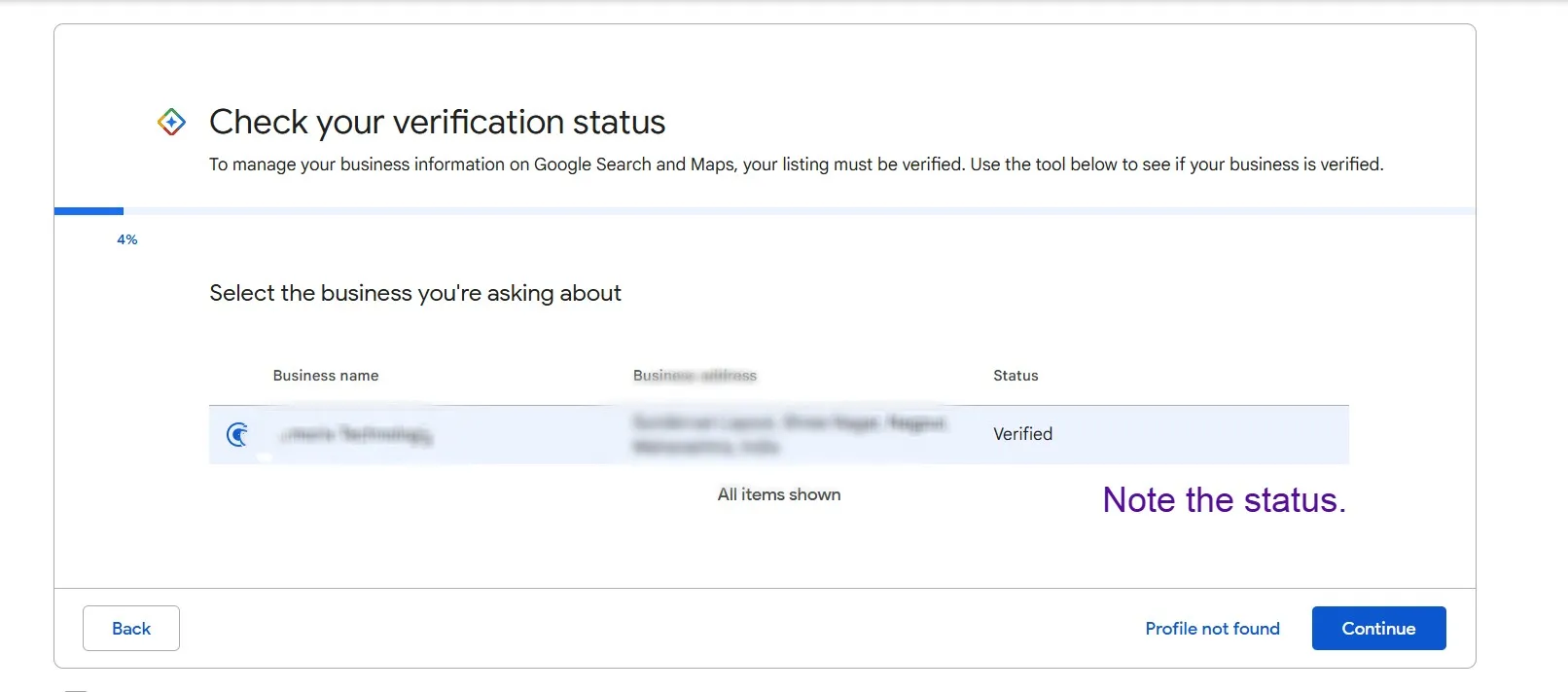
A forum moderator lists six statuses: Verified, Verification required, Reverification required, Disabled, Suspended and Duplicate. Google doesn’t publish that list, so treat it as an expert’s observation.
2. Check your profile while signed in
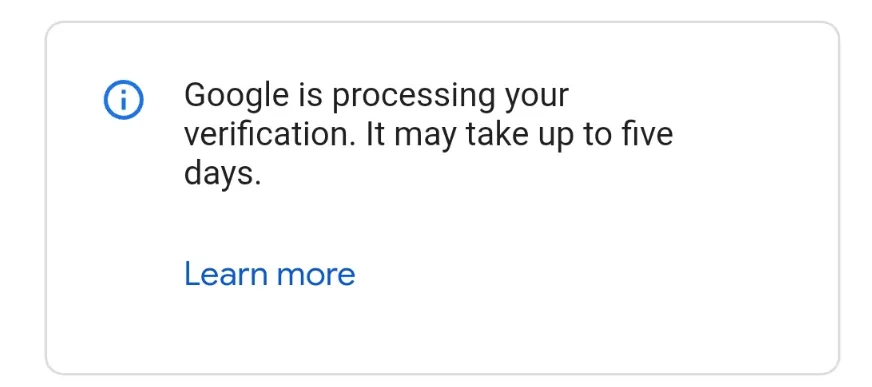
Search your business name and city on Google, signed in to the same account. Google says you need to be signed in to the account tied to the profile to find it. Note whether it shows a message like “Google is processing your verification.”
3. Check what customers see
Search your full business name and city on Google Maps while signed out, or in a private window. Note whether the profile appears.
What your results mean
Tool says Verified, profile says Processing
This is a display glitch, not a delay. If the tool and the profile show the same status, you just have to wait. If the tool says verified while the profile says it isn’t, the forum moderator’s guide calls it a glitch. It appears tied to your user session rather than the business: a user newly added to the profile doesn’t see the message. Two fixes that often work, though not always:
- Set an opening date on the profile, then clear your browser cache.
- If the message stays, open business.google.com/en-all/business-profile and select Sign in.
Only try these once the tool says Verified. If the message is still there, go to the contact step below.
Tool and profile both say Processing
That’s a genuine wait. Google says verification reviews take up to 5 business days and rarely take longer. Past that, follow our stuck verification steps.
Tool says Verified, profile looks fine, Maps shows nothing
Not the glitch. Google says edits can take up to 3 days to appear and rankings for new businesses up to a month, so search your full name and city before assuming a fault. Still missing after that? Work through the other causes in our not showing up diagnostic, starting with duplicates and a closed label.
Tool says Disabled or Suspended
Google says disabled or suspended profiles won’t show to other users until the issue is resolved, and you get a notification in the Google account that manages the profile. Follow Google’s appeal steps and our suspension recovery guide. Don’t create a new profile.
Tool says Duplicate
Another profile is involved. See how to find and merge a duplicate, or appeal a duplicate flag if you’re a separate business at a shared address.
Tool says Verification required or Reverification required
Verify again. Google says that when Get verified reappears, it couldn’t completely verify the business, and that a request for more info usually follows a recent change to your business details. Select Get verified and try the options shown. Our verification guide covers the methods. Check the tool before you trust the dashboard here, since it can show this status for a disabled profile.
Contact support through the tool
- Open the verification status tool, signed in with the right account
- Select the business
- Click through to the end of the workflow
- Look for the Contact us link
In your message, give one line for each screen: what the tool says, what the profile says, what Maps shows. Add screenshots if the form lets you attach files. Google doesn’t publish a response time for this route, so send one request and wait.
If you can’t find the Contact us link, Google’s own Get help with verification form is a fallback. Its issue list only covers ownership and duplicates. In a 2024 forum thread, an owner with a new profile picked the closest option and described the real problem in the description box.
If support doesn’t work
Post in the Google Business Profile Community. Posts containing business details can get flagged as spam, so keep the post short with no phone number, address or email, and put the details in a public Google Doc: business name, address, website, profile link, case ID if you got one, your three screenshots and what support told you.
Product Experts are volunteers who can flag cases to Google. They can’t publish a profile themselves, and nothing is guaranteed.
What doesn’t help
- Waiting out a Processing message the tool already contradicts. If the tool says Verified, more patience doesn’t fix a display glitch.
- Creating a second profile to fix it. It can add a duplicate, which is another reason profiles don’t show.
- Starting with the general GetHelp form. It sends verification issues to the status tool anyway.
This post is one piece of a bigger playbook. The full guide covers the common Google Business Profile problems in one place, with the fix for each: The GBP cheat sheet.
Tool says Verified and the profile still won’t show? Our GBP verification service takes it from here, paid upfront and refunded in full if the profile is not verified. Get my profile showing


