
Before you record: Google’s video verification requirements
- Record inside the flow: On your phone, open your profile, tap Get verified, choose Business video, then Start recording.
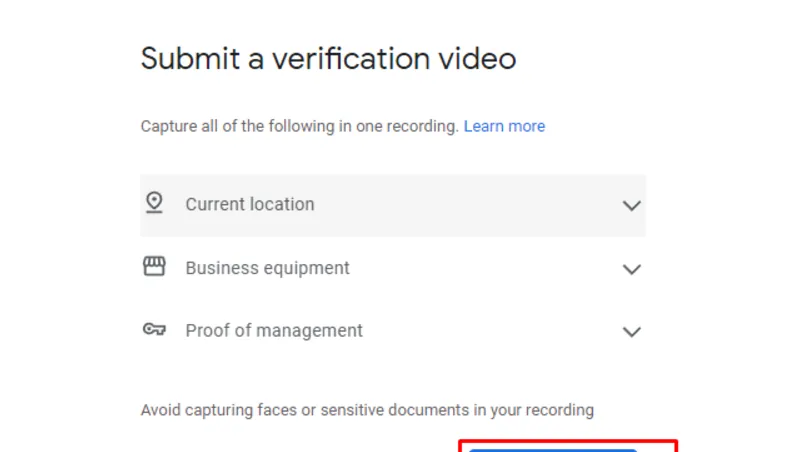
Google says pre-recorded footage and offline recordings aren’t allowed.
-
No edits and no breaks: Google publishes no maximum length, so don’t pad it. Once all three things are on camera, stop.
-
Keep these out of frame: bank, tax or ID numbers, private info about you or others, and other people’s faces. You can’t edit or blur afterwards, so film when the space is empty.
-
Match the name: For a storefront, the name in the video has to match your profile.
-
Know who’s filming: The recording has to happen live, on a phone, at the business, by someone who can open the profile. A localsearchforum moderator says owners and managers can both start verification, since Google’s rules refer to “authorized representatives”.
Some members say Google prefers the owner to film it. If you manage profiles for clients, see roles and which one you need.
-
Check your business type: Google says that if customers don’t visit your location, list it as a service-area business and leave the address off.
Storefront or hybrid: the shot list
Google lists these three things without an order. Outside first, then in, is just the easiest way to film them.
- Street sign, building number and nearby businesses or familiar places. This confirms you’re at the spot shown on Maps.
- The sign, your business name has to be clearly printed on a permanent fixture: a signboard, wall or window.
- The storefront or showroom itself.
- Something only staff can do: Open the cash register, kitchen or storage room, or use the point-of-sale system.
- Check before you stop: Location, proof it exists, and proof you run it should all be in the take.
Service-area business: the shot list
-
Where you operate: Street signs, nearby landmarks or other identifiers at your business address. Avoid empty land or spots with no markers.
Run it from home? Google’s tip is to film the landmarks and signs in your immediate neighbourhood. A forum moderator suggests vehicle-based businesses park in the service area at an intersection or plaza.
-
Proof it exists: Your tools, equipment or products, your workspace, business cards, or branded clothing. A moderator who has verified dozens of these says a desk and computer is enough for a home office, and an empty service vehicle probably isn’t.
-
Proof you run it: Unlock a branded van, or show a business permit, invoice or utility bill that matches your profile name. You can also add unlocking your office door, logging into a booking system, and showing registration, a license or an insurance policy.
You don’t need a sign. Google’s service-area list doesn’t ask for signage, and the experts agree a home-based service-area business can skip it.
If it’s rejected
Google says it reviews within 5 business days and will share why a video didn’t pass.
- On your phone, open your profile and tap Review issues.
- Read what’s flagged: Google’s examples, business name not visible on the storefront, no nearby area shown, missing proof of authorization to operate the business.
- Record a new video with everything from the first one plus the missing items.
Google also emails you in some cases. A localsearchforum moderator posted one for a failed service-area video. It said the location should match the service area you entered, the name should appear on a business card, branded vehicle or license, and a booking system could replace unlocking a vehicle.
Feedback can be thin, though. One owner on the forums reports an email saying Google wasn’t sure of the exact issue. If Review issues is vague, work from the three requirements and strengthen each: more shots of documents, branded tools or vehicle, and a clear unlock with your own key.
The fixes for each type of rejection are in common rejection reasons and fixes.
If the upload fails, stalls or keeps failing
-
Upload fails on the first try: Google says to upload it again.
-
Stuck in processing: Google says the review can take up to 5 business days. Google publishes no length or file-size limit for verification videos, but forum members report long, high-resolution clips getting stuck. One reports clearing a stuck case by re-recording at the lowest resolution and under 90 seconds. Treat that as something to try, not a rule.
-
Still stuck: Google says to try another available method first, and its support team can help after that. The verification status tool lets you open a ticket.
One owner who used it was verified about 48 hours later, which I’d treat as one case, not a promise. Our walkthrough of the “no more ways to verify” screen is here.
-
Afterwards: This is separate from videos you add to your profile. You can delete your verification video any time. Go to your profile, click the 3 dots, then Business Profile settings, then Advanced settings, then Video uploads, then Delete videos. If you don’t, Google deletes it later.
What doesn’t help
- Stitching clips or uploading from your gallery: Google requires a live, unbroken recording.
- Filming customers or staff: Google says to keep other people’s faces out of the video.
- Re-recording without fixing what was flagged: Check Review issues first.
Not sure which verification method you’ll get? See every method and how long each takes.
This post is one piece of a bigger playbook. The full guide covers the common Google Business Profile problems in one place, with the fix for each: The GBP cheat sheet.
About to record and not sure every shot is there? Send us your plan and we’ll check it against Google’s three requirements before you press record. Already rejected more than once? Our GBP verification service takes it from there, paid upfront and refunded in full if the profile is not verified. Check my video plan


