Why Google marks a profile as a duplicate
Google’s help page on duplicate profiles lists three reasons:
- A verified profile already exists for the same business
- Multiple profiles share the same address
- Multiple profiles exist for the same business but offer different services
Once flagged, the profile stops showing on Google Search and Maps, which is why a wrong duplicate flag often looks like a business that is not showing up on Google at all.
Most incorrect flags come from the address reason. Two businesses in one building, a doctor working inside a clinic, or a rebranded business next to its old name can all trip it. Two profiles that share a lot of data (name, address, category, phone, website) can trip it too.
Wrong duplicate flag or a real duplicate listing?
Use this post if your business is real, separate and eligible, and Google still marked it as a duplicate.
If you or an old agency created a second profile for the same business, you don’t need an appeal. You need a merge or a removal. Our guide to finding and merging duplicate profiles covers that, including how to keep your reviews.
Google’s condition for an appeal is that both businesses are eligible and distinct from each other. If both serve customers at the same location, you’ll need evidence of permanent signage that clearly shows both businesses.
How to appeal a Google Business Profile marked as duplicate
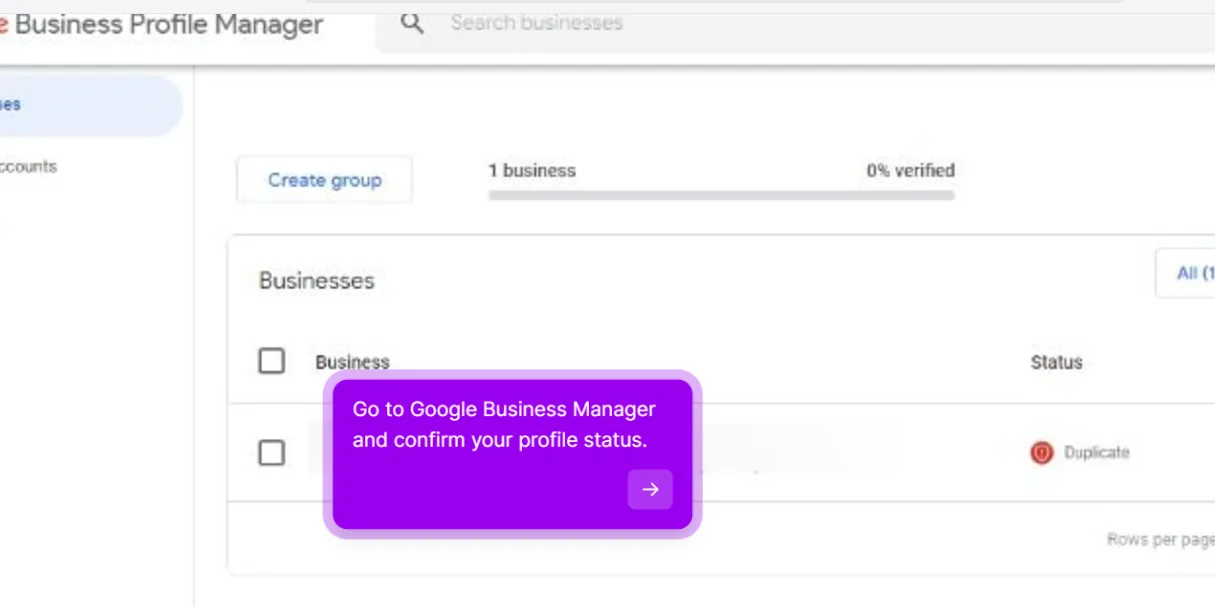
1. Confirm the status
Sign in to Business Profile Manager (the old Google My Business dashboard) with the account that manages the profile. Find the location marked Duplicate.
2. Find the profile Google thinks you are a duplicate of
Search your business name and city on Google Maps. Open the other listing and note its URL. Compare name, address, phone, category and website side by side. Screenshot both.
3. Collect your evidence
- A photo of permanent signage showing your business name. If another business shares the address, the signage must clearly show both.
- A storefront photo with the building number visible
- Proof of address or registration, such as a lease, utility bill or business registration
Signage is what Google’s help page asks for. Support teams often ask for the storefront photo too, and the proof documents are worth having ready.
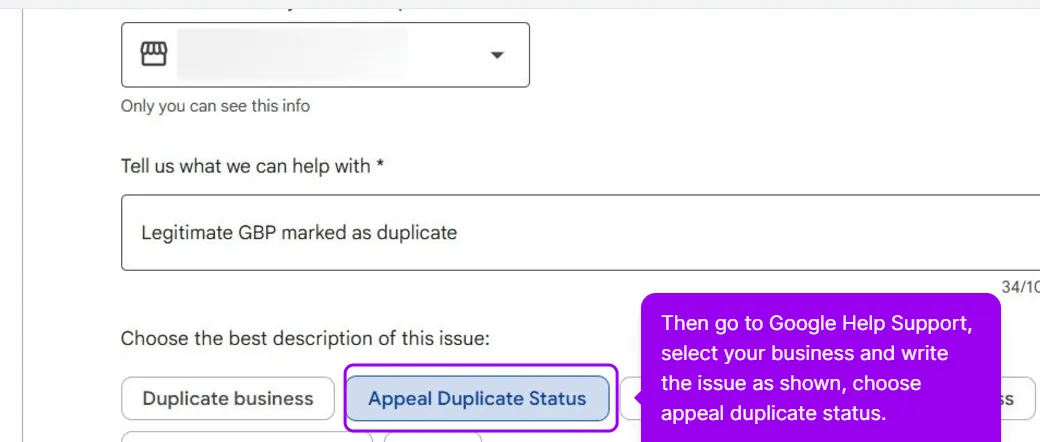
4. Open the help form and choose Appeal Duplicate Status
Go to support.google.com/business/gethelp and select the flagged profile. Describe the issue in a few plain words, then choose Appeal Duplicate Status as the best description of the issue.
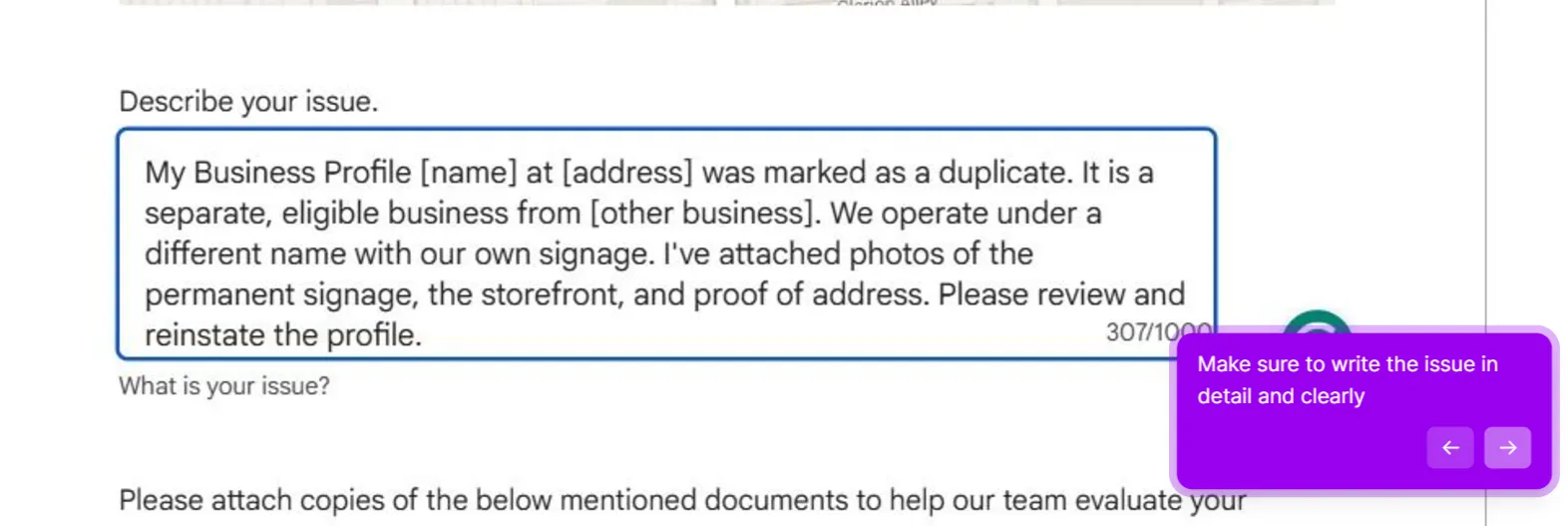
Then describe the issue in detail. Example message you can write:
“My Business Profile [name] at [address] was marked as a duplicate. It is a separate, eligible business from [other business]. We operate under a different name with our own signage. I’ve attached photos of the permanent signage, the storefront, and proof of address. Please review and reinstate the profile.”
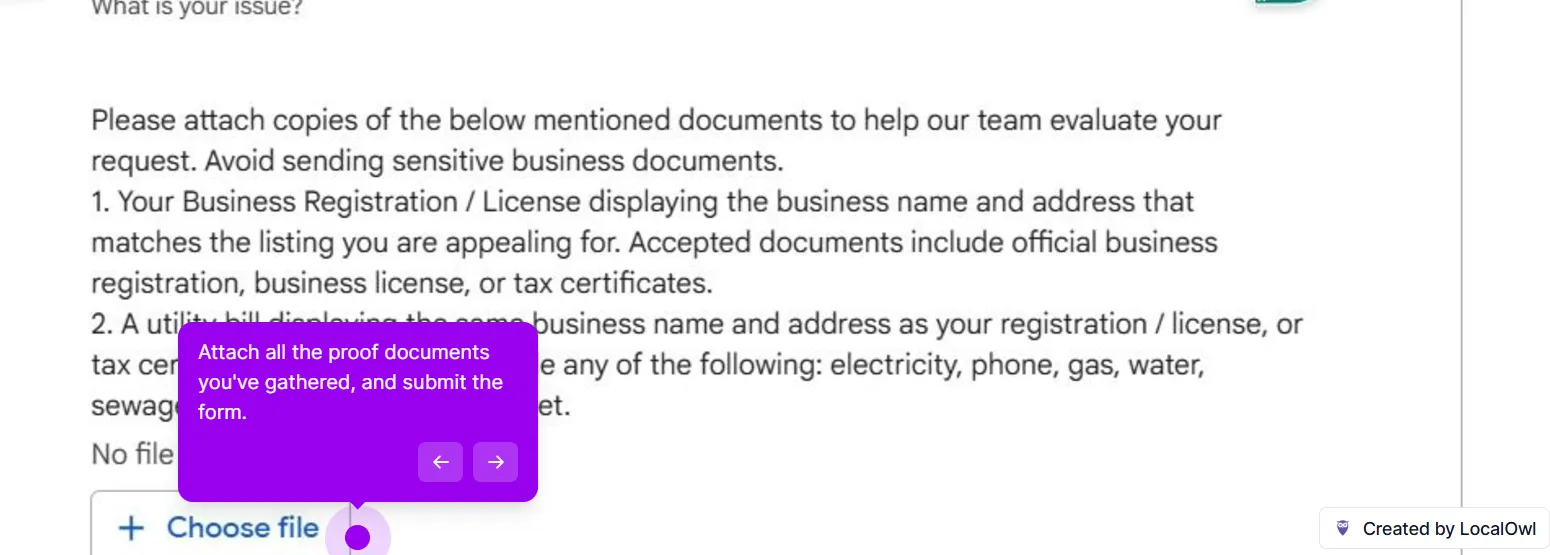
Attach all the proof documents the form asks for, and then submit the form.
5. Submit once and save the case ID
Submit through one route only. Filing the same request through different channels creates conflicting case IDs and slows things down.
6. Wait for Google’s decision
Google’s help page doesn’t give a turnaround time, so don’t plan around one. Keep an eye on the email tied to the profile.
7. Escalate if nothing moves
If a week passes with no answer, post in the GBP Community with:
- Your profile link
- The case ID
- A summary of the evidence you sent
A Product Expert can flag the thread to Google.
After your profile is reinstated
- Check that name, address, phone, category, website and hours are all correct.
- If you share a building, add your suite or floor number. Missing unit numbers make Google confuse neighbouring businesses.
- Keep your data distinct from the neighbouring profile: your own name (matching your signage), category, phone and website. Less overlap means less chance of a repeat flag.
What makes it worse
- Deleting the flagged profile and starting over. You lose reviews, photos and history. If the data still overlaps, the new profile can be flagged the same way.
- Filing the same appeal through several routes. One case, one ID.
- Appealing without signage proof when you share an address. It’s the one thing Google explicitly asks for.
- Removing a profile before you know which one is the real one. Google says removing a profile deletes its content and linked managers. Removal also doesn’t fix a wrong flag; the appeal does. If there really is a second listing, follow the safe order in our merge guide.
This post is one piece of a bigger playbook. The full guide covers all 16 common Google Business Profile crises in one place: The GBP cheat sheet.
Separate business and still flagged? Send us your profile and we’ll file the appeal, and you pay only when it is back on Search and Maps. Lift my duplicate flag


