
Your risk and the right move depend on two things: whether you’re a storefront or a service area business (SAB), and how far you’re moving. Four cases cover almost everyone.
1. Storefront moving within the same city or metro
The straightforward case is just you editing the address on your existing profile, adjusting the pin, and saving.
Steps:
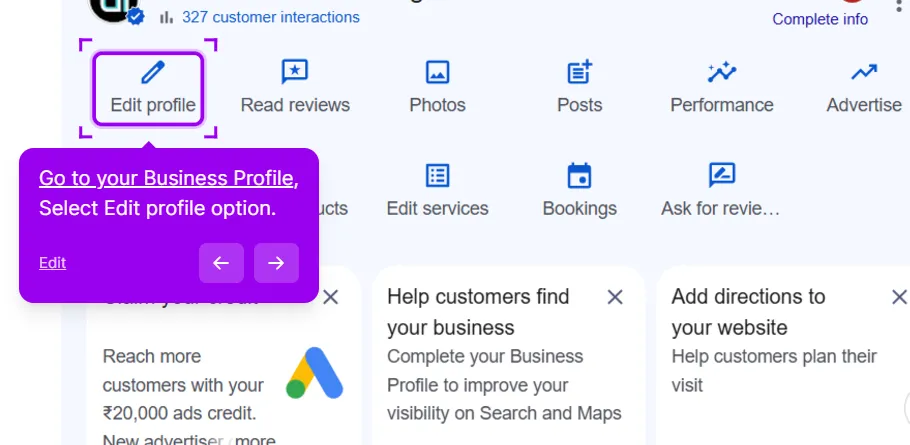
- Go to your Business Profile and select Edit profile.
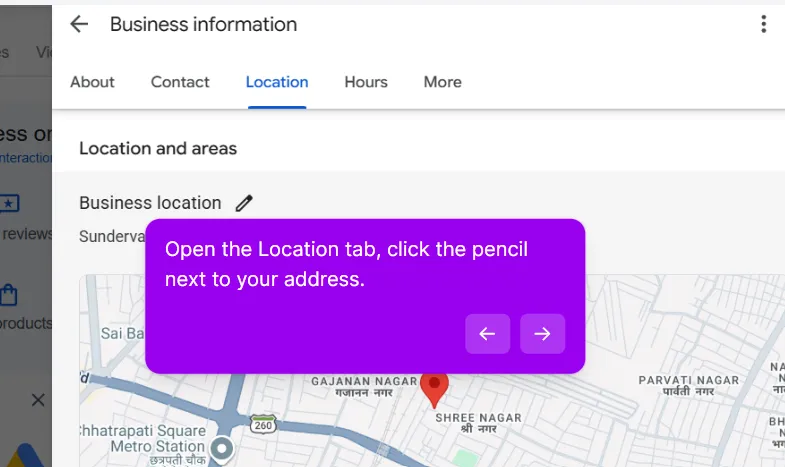
- Open the Location tab and click the pencil next to your address.
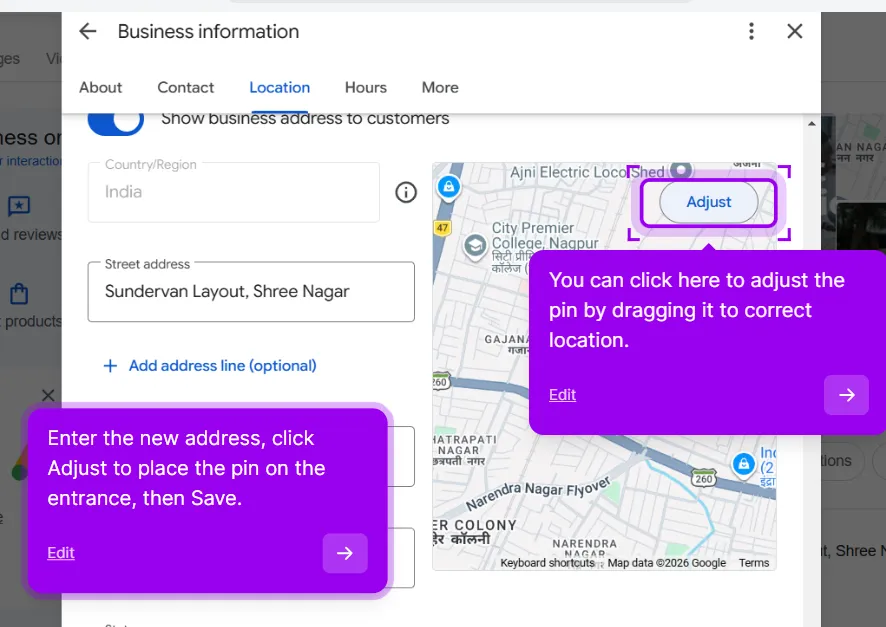
- Enter the new address, click Adjust to place the pin on the entrance, then Save.
- Reverification: Expected. Google’s Edit your Business Profile help page says that if you move to a new address after verification, you need to verify again. For a short move, this is usually routine: postcard, phone or email.
- Reviews: Transfer automatically. Google’s page on moving reviews confirms that if you move and keep the same business name, reviews move with you. It lists a few exceptions, such as hotels and golf courses.
2. Storefront moving to a new city
Same mechanics, higher scrutiny.
- Steps: Same edit as above, but have your proof ready before you save: new lease or registration, a photo of the storefront sign, a utility bill in the business name.
- Reverification: More likely to require video or a live call rather than an automatic postcard, since a long jump looks less routine to Google’s systems. If it stalls, see what to do when verification is stuck, or let our verification service handle it.
- Reviews: Still transfer automatically per Google’s policy, same name, same profile. The risk here isn’t the address edit itself, it’s what happens if the profile gets flagged and suspended mid-move rather than just asked to reverify. A suspended profile is a different, worse situation than a pending reverification. If that happens, don’t panic-create a second profile; work the suspension first.
3. Service area business moving within its existing service area
Lowest risk of the four.
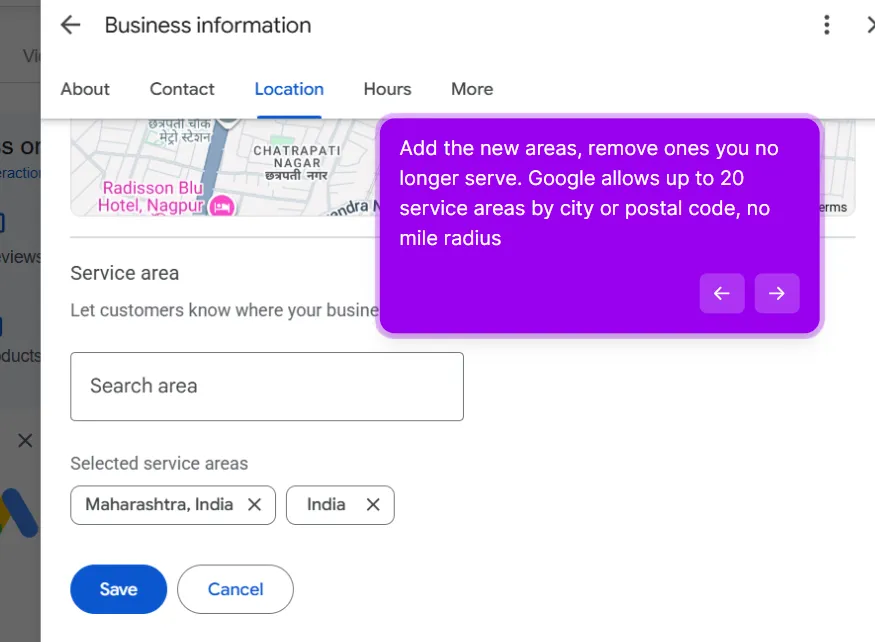
- Steps: Go to your Business Profile, then Edit profile and Location. Now click Edit next to Service area. Add the new areas, remove ones you no longer serve. Google allows up to 20 service areas by city or postal code, no mile radius, and asks that the whole area stay within about two hours’ drive of where you’re based.
- Reverification: Low, since your public-facing service area is what’s changing, not a visible address.
- Reviews: Unaffected, since there’s no new profile and no address change in the normal sense.
4. Service area business moving to a new state, region or country
This is the case that actually is risky, and it’s worth understanding why before you touch anything.
Why the obvious move doesn’t work
A service area business still has an address on file, Google just doesn’t show it publicly. That hidden address is also what anchors your map pin for proximity ranking.
Claudia Tomina, a Google Product Expert, explained on Search Engine Land in July 2026 that in her testing the pin stays anchored to whatever address the profile was originally created with, and editing the address field doesn’t move that anchor while the address stays hidden. Worse, if your edited profile gets flagged and Google’s support asks you to re-hide the address as a condition of reinstatement, the pin snaps straight back to the old city.
This is exactly what happened in a real case on a local SEO forum: an SAB moved across the country, the owner edited the address directly, Google suspended the profile, it was reinstated after paperwork, and the business stayed ranked in the old state anyway. I checked that thread closely because it’s the clearest documented version of this bug.
The sequence experts recommend instead
- Reset the old profile’s address back to what it was originally verified under, and keep it hidden. Don’t leave it half-edited to the new location. A clean, accurate old profile is less likely to get suspended while you work the rest of the sequence.
- Create and verify a new Business Profile at the new location. This gives you a fresh, correctly anchored pin rather than trying to drag the old anchor across the country.
- Once the new profile is verified, ask Google to move your reviews across. Google’s own support page covers this exact scenario: if you unintentionally end up with two profiles because of a location change, you contact them through the review transfer form to move reviews from the old profile to the new one.
The one thing that can go wrong even with this sequence
If the old profile gets suspended and fully taken down, rather than just hidden, before you request the transfer, Google may tell you the content has already been removed and they can no longer mark it as moved. That’s not a hypothetical, it’s what happened in the forum case above after the owner’s old listing was marked as removed for a policy violation. The lesson is to keep the old profile intact and hidden, and make the review transfer request promptly once the new one is verified, rather than letting the old one sit in limbo.
What usually goes wrong when you change your address
- Editing an SAB’s address directly to a far-away location and hoping. This is the mistake behind the stuck-ranking bug above.
- Creating a second profile out of panic after a suspension, without first trying to fix the original. Google’s guidance is explicit: don’t create a new profile because of a location or ownership change. The long-distance SAB move above is the one case where we’d make an exception, and only in that order.
- Letting the old profile go fully suspended before requesting a review transfer. Once it’s taken down rather than hidden, the transfer option can disappear with it.
- Skipping proof on a long storefront move. Signage, lease and utility bill ready before you save the edit shortens the reverification step.
If your old and new listings both show up on Maps right now, see how to find and merge a duplicate Google Business Profile.
This post is one piece of a bigger playbook. The full guide covers the common Google Business Profile problems in one place, with the fix for each: The GBP cheat sheet.
Not sure which of the four moves you’re making? Send us your profile and where you’re moving, and we’ll tell you the steps in the right order before you touch the address. Plan my address change


