
Google Maps now shows a short summary of your business before someone opens your full profile. It’s built from your Business Profile and the reviews you’ve received. A profile with detailed, current reviews and a complete listing usually gets an accurate summary. A thin one, or one with a pile of old complaints, can get a summary that says something that stopped being true months ago.
What “Know before you go” actually is
Google added Know before you go to Maps in November 2025 as one of its Gemini features. It’s a few bullet points of tips near the top of the Overview tab, like what people order or when it gets busy, written by Gemini from reviews and information about the place. It started in the US on Android and iOS and has since reached more countries.
It sits next to two other AI-written pieces worth telling apart, since each behaves a little differently:
- The editorial summary: the short description near the top of your profile, marked “Summarised with AI.” It draws on your whole review history, so it can carry old impressions forward. You can’t edit it yourself.
- The review summary: the AI summary of what reviewers say, shown with your reviews. It leans on recent reviews and tends to change faster than the other two.
- Know before you go: the tips block on the Overview tab in the Google Maps app. It behaves more like the editorial summary than the review summary, and in our experience it doesn’t refresh on any schedule you can count on.
Why there’s no edit button
Unlike a wrong phone number or address, this isn’t a data field you can open and correct. It’s generated text. Google gives owners no way to rewrite AI-written text on a profile. You can report it, and you can change what it’s written from.
That means the fix works one level down, at the data the summary is drawing from.
Step by step: get it corrected
1. Screenshot the summary
Capture exactly what it says, with the date. You’ll need this to compare against later and to describe the problem accurately in any report.
2. Trace what it’s likely pulling from
Reread your business description, hours, attributes, services and photos. Then reread your most recent reviews, especially any recurring complaints. If ten reviews mention something that’s no longer true, that’s very likely feeding the summary.
3. Correct the source, not the summary
Update whatever’s actually wrong on your profile: hours, attributes, services, description, and photos that no longer represent the business.
If Google won’t keep a correction (you save it and it reverts, or a suggested edit keeps overriding it), that’s a separate problem. See why your Business Profile edits won’t save.
4. Reply to the reviews the summary is likely drawing from
If a review describes a problem you’ve since fixed, reply to it with a short, factual correction. Replies are public text on your profile, so they give readers, and very likely the summary, something current to weigh against the old complaint.
Don’t try to get genuine reviews taken down because they mention the old problem. Google only removes reviews that break its policies, and the steps for those are in how to remove a Google review.
5. Bring in a few fresh, specific reviews
Ask recent customers for reviews that mention real details, not just “great service.” A cluster of old reviews describing a problem tends to outweigh one or two new ones, so this step works best done steadily rather than as a single push. A sudden burst can also trip Google’s review spam filter.
6. Report the summary in Google Maps
Know before you go has no report button of its own. The report option sits on the AI summary card just below it, so that’s the path:
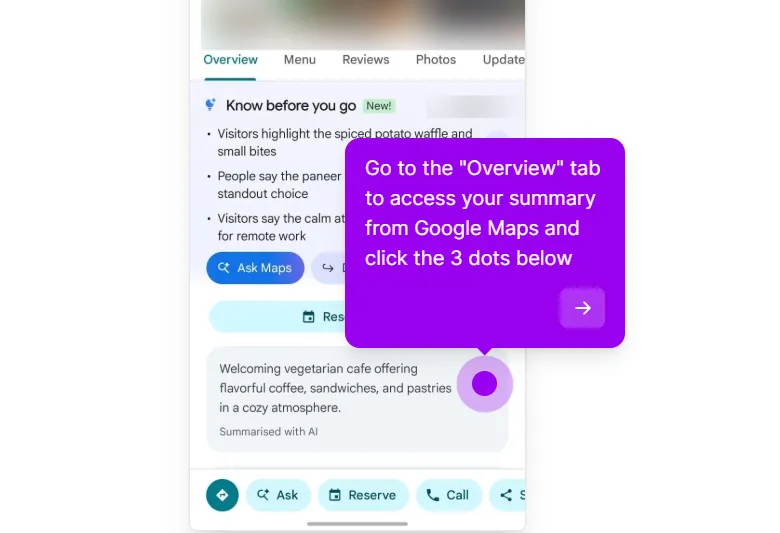
- Open your business in the Google Maps app and stay on the Overview tab. Under Know before you go, find the card marked “Summarised with AI” and tap the three dots on it.
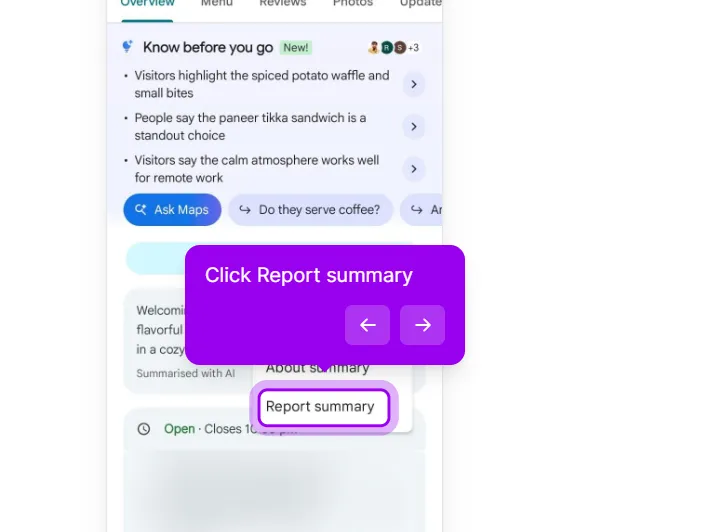
- Tap Report summary.
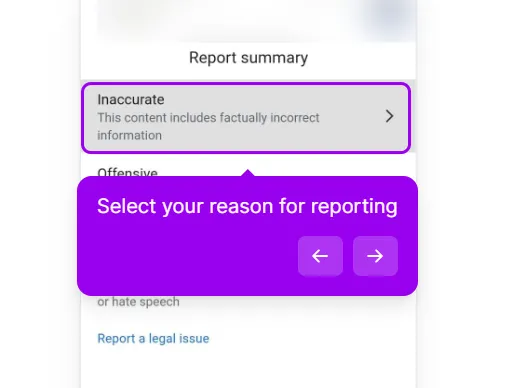
- Pick the closest reason, usually Inaccurate (“This content includes factually incorrect information”), and submit.
- For the profile itself, go to support.google.com/business/gethelp, select the listing, and describe the specific line that’s inaccurate and why. Point to what you’ve already corrected.
7. Escalate if it’s actively harming the business
If the summary makes a claim that’s false and damaging, not just unflattering, raise it in the Google Business Profile Community with your profile link and a clear description of the inaccuracy. A Product Expert can sometimes flag it onward.
What won’t move it
- A single edit: Google weighs new information against the pattern already in your review history. Expect this to take more than one pass.
- Deleting reviews that mention the problem: You can’t delete genuine reviews, and the recent ones that show you’ve fixed something are your best counter-evidence.
- Treating it like a data error: It isn’t a wrong phone number. Reporting it the same way, without fixing the underlying reviews or profile fields, won’t get far.
Keep this from recurring
- Keep the profile complete and current: hours, attributes, services, photos.
- Ask for reviews that mention specific details, not generic praise. Vague reviews give the summary little to work with and get replaced slowly.
- Reply to negative reviews with factual corrections when something has genuinely changed.
- Recheck the summary every few weeks rather than once and forgetting it.
This post is one piece of a bigger playbook. The full guide covers the common Google Business Profile problems in one place, with the fix for each: The GBP cheat sheet.
Summary still saying something that isn’t true? Send us your profile and we’ll find which reviews and fields it’s drawing from and tell you what to change first. Fix my Maps summary


