
This post is the permissions cheat sheet. If you need to hand primary ownership to someone, use our transfer guide. If the owner has gone missing, see how to get ownership back.
Who can do what: permissions by role
| What you want to do | Manager | Owner | Primary Owner |
|---|---|---|---|
| Edit name, category, address, hours, phone, website | Yes | Yes | Yes |
| Reply to reviews and Q&A, publish posts, add photos | Yes | Yes | Yes |
| Manage Google Ads links, Messaging, Bookings | Yes | Yes | Yes |
| Close a location | Yes | Yes | Yes |
| Add or remove people, change roles | No | Yes | Yes |
| Remove the profile | No | Yes | Yes |
| Leave the profile yourself | Yes | Yes | Only after handing over |
| Transfer primary ownership | No | See Note | Yes |
Note on owners: Google’s transfer page says only the primary owner can transfer primary ownership. The same page then says co-owners can upgrade themselves to primary owner. Forum regulars have long reported that an owner can make themselves primary and remove the old one. So treat every Owner as holding the keys.
New people: In their first 7 days, new owners and managers may get an error if they try to remove others, delete or undelete the profile, or transfer primary ownership.
How to check your role in People and access
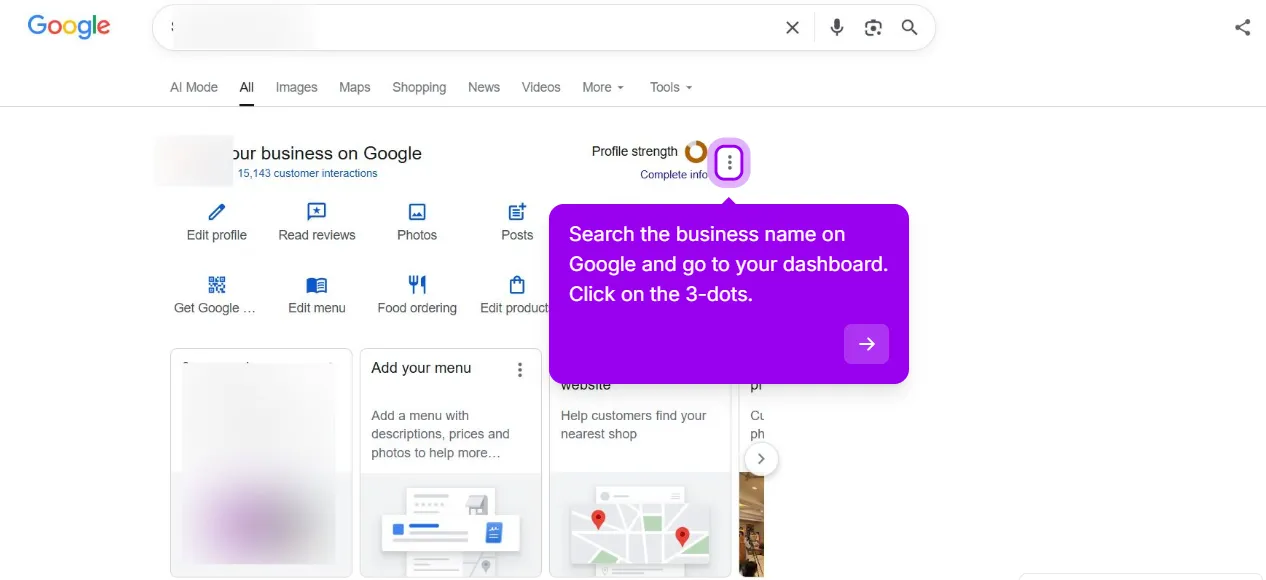
- Sign in with the Google account you use for the profile, then search your business name on Google, or go to business.google.com.
- Click the three-dot menu (More) on the profile dashboard.
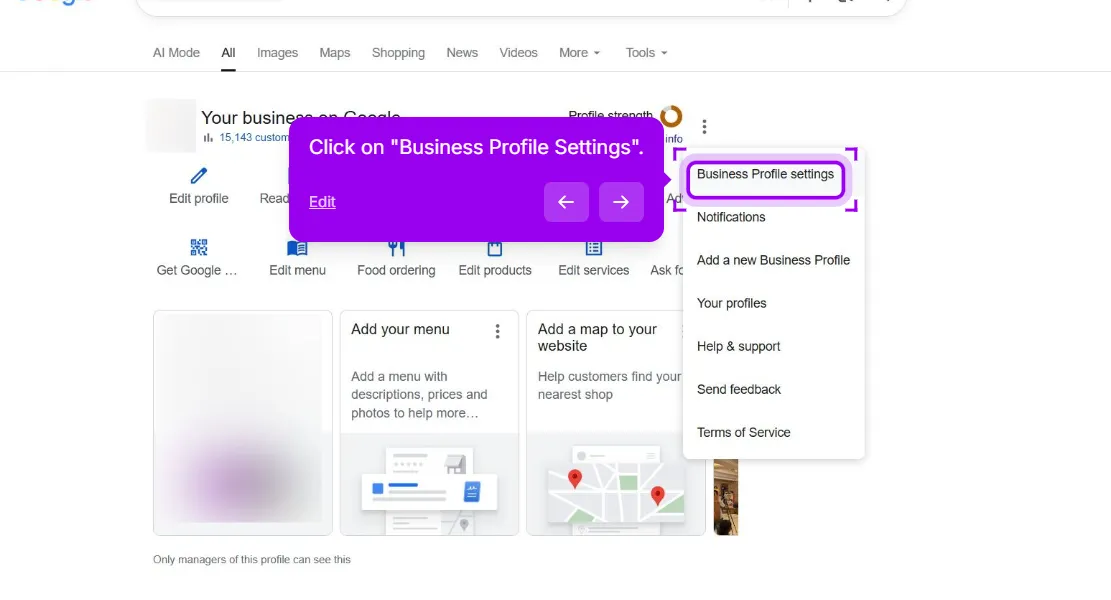
- Select Business Profile settings, then People and access.
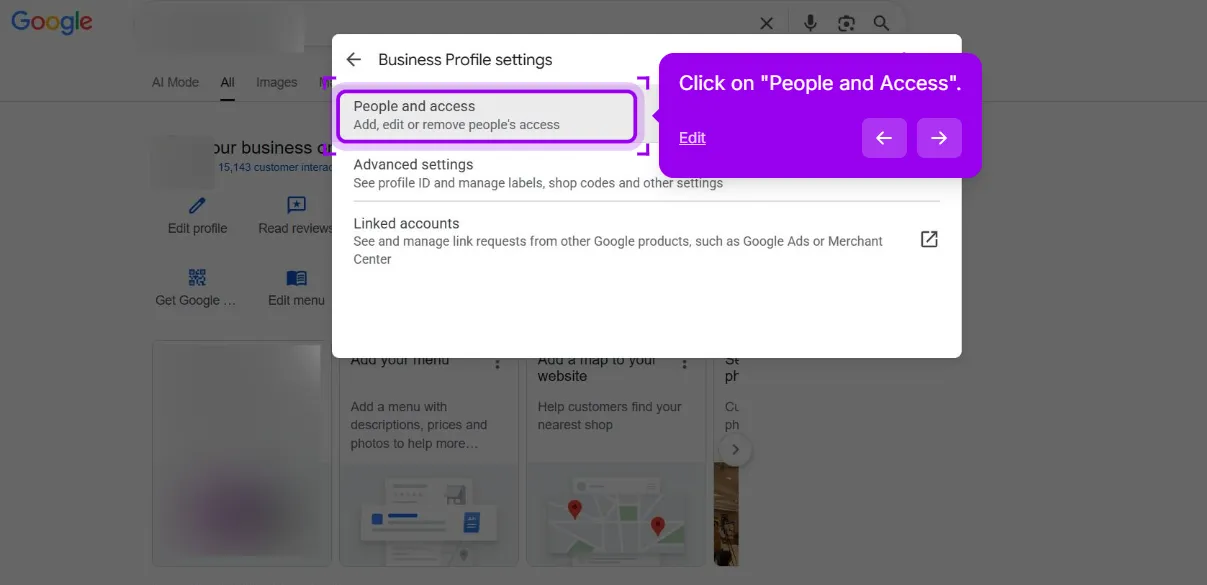
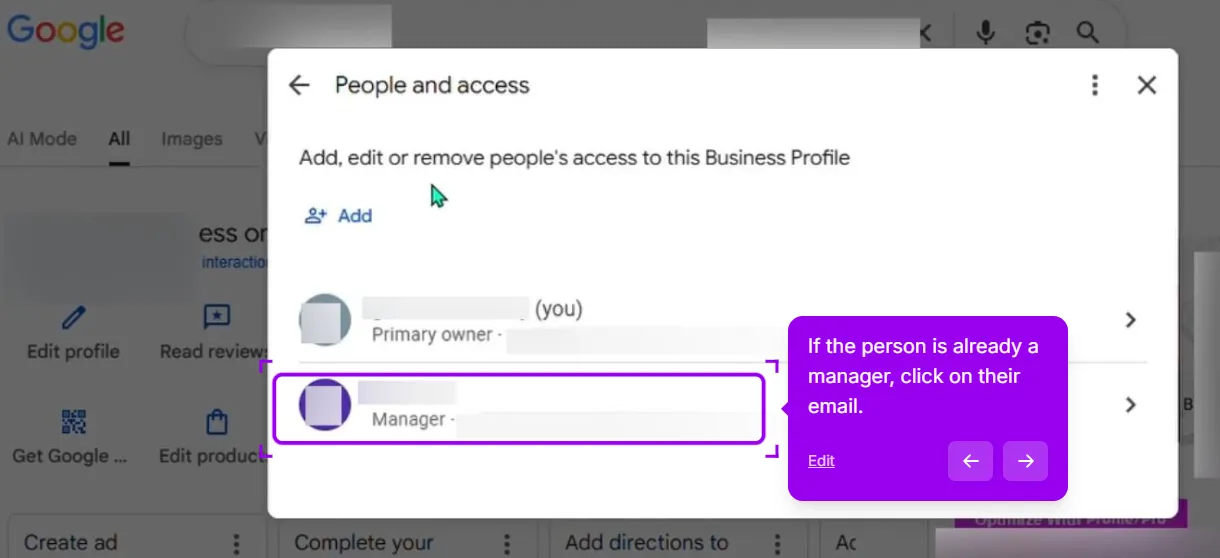
- Find your name to see your role. Everyone on the profile can also see the names and emails of the owners and managers.
Something not working?
- You can’t select a person to remove them: Google says it might mean you only have manager access. Ask an owner.
- You get an error on removing, deleting or transferring: You may have been added less than 7 days ago.
- You’re a manager and need primary ownership: Ask an owner to transfer it. If no owner can be reached, use the request ownership flow in our access recovery guide. Product Experts on Google’s forum also advise requesting from a Google account that isn’t on the listing.
How to remove the primary owner from Google My Business
Not directly. Google’s own error message says to transfer primary ownership to someone else first, then remove them. A primary owner can’t remove themselves either.
The person you transfer to must already be an owner or manager, and a newly added one has to wait out the 7 days. Steps are in the transfer guide. Managers can’t do this, so ask an owner.
Role mistakes that cost you the profile
-
Giving an agency Owner access: If Google removes an owner’s Google Account, it removes the locations that user owns. A manager’s removal doesn’t affect the locations. Google also tells agencies to have the business own the profile and add them as managers.
-
One restricted account: When Google restricts an account for policy violations, the profiles it manages are suspended. If one location is suspended and the rest are fine, Sterling Sky says to check the other owners. Removing the restricted user before you appeal is faster than fixing the restriction.
Product Experts also suggest making a clean new Google account the primary owner and removing the rest. I’d start by asking each owner to check their own account. See suspension recovery.
-
Managers editing the big fields: Any manager can change name, category and address. Sterling Sky warns that when enough of a user’s edits get rejected, Google can restrict that account. Agree who edits what.
-
An owner who disappears: Google can revoke ownership if an owner hasn’t signed in for a while, can’t be reached by email, or the business says they’re no longer authorized.
A safer setup
- Primary owner: a Google account the business controls, not one employee’s personal Gmail, plus one trusted backup owner.
- Everyone else: staff and agencies as Manager.
- Accounts: one per person. Nobody shares a password, and Google Groups can’t be added. I’d check People and access whenever someone joins or leaves.
Had a call asking for a code or for access to your profile? See how to tell a scam call from Google’s own calls.
This post is one piece of a bigger playbook. The full guide covers the common Google Business Profile problems in one place, with the fix for each: The GBP cheat sheet.
Not sure who should hold which role on your profile? Tell us who is on it and we’ll tell you what to change. If you want the profile looked after for you, our Google Business Profile service starts with you adding us as a manager while you stay the owner. Check who has access


