
How to decide: Should you hide your address?
| Your setup | What to do |
|---|---|
| You travel to customers (plumber, cleaner, mobile groomer) | Hide address |
| You work from home, with no sign on the property | Hide address |
| You have a signed, staffed shop or office that receives customers in stated hours, and you also travel | Show it and add a service area (hybrid) |
| You have a real storefront | Don’t hide address |
Google’s rule just says: To show an address, you need permanent signage there. By that rule, a home without a sign doesn’t qualify, even if you meet a few clients there by appointment.
Don’t swap in a P.O. box, a remote mailbox or a virtual office to protect your privacy. Google says none of them are eligible. Hide your real address instead.
How to hide your address on Google Business Profile
Part 1: Set your service area (already have one? Skip to Part 2)
- Search your business name on Google, or open the Maps app and tap Business, select Edit profile.
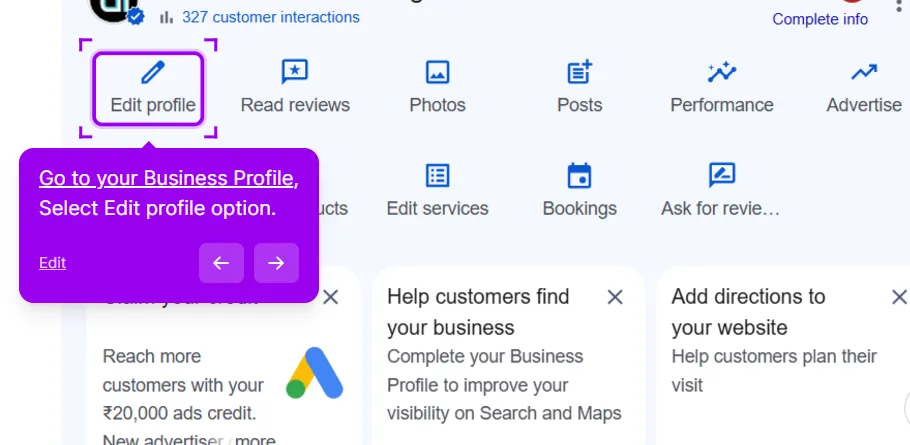
- Select Location.
- Next to Service area, select Edit.
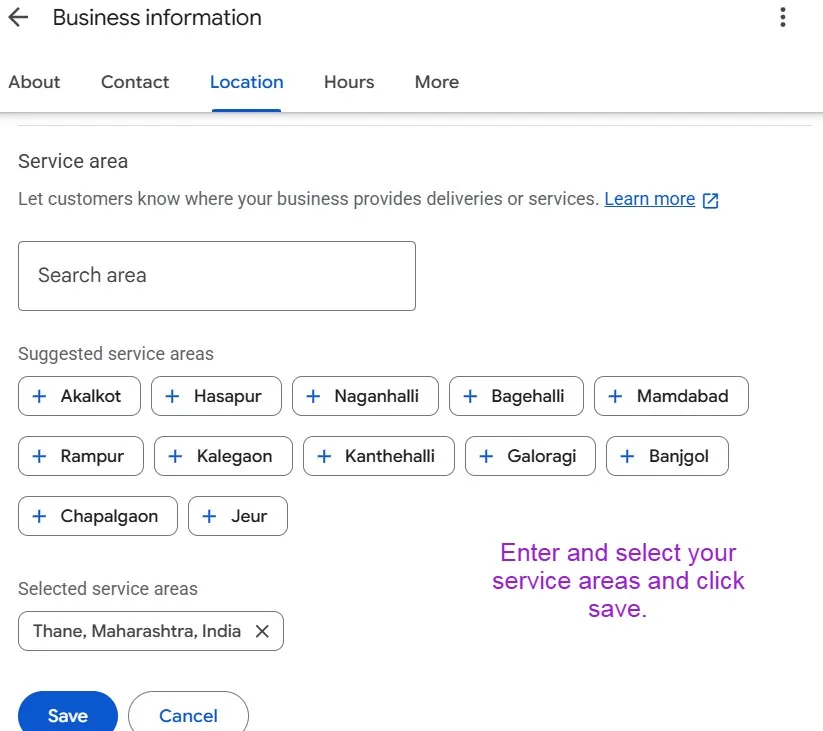
- Pick a suggested area or type the cities or postal codes you serve.
- Select Save.
Google’s limits are in our address change guide. One extra tip: don’t add the whole country. Search Engine Land reported that a pin landed in the ocean after a US-wide service area was selected with no address.
Service area edits can take up to 48 hours to show. Google doesn’t make you wait before Part 2, but forum experts link the stuck-address bug to two edits pending at once, so waiting is safer.
Part 2: Hide the address
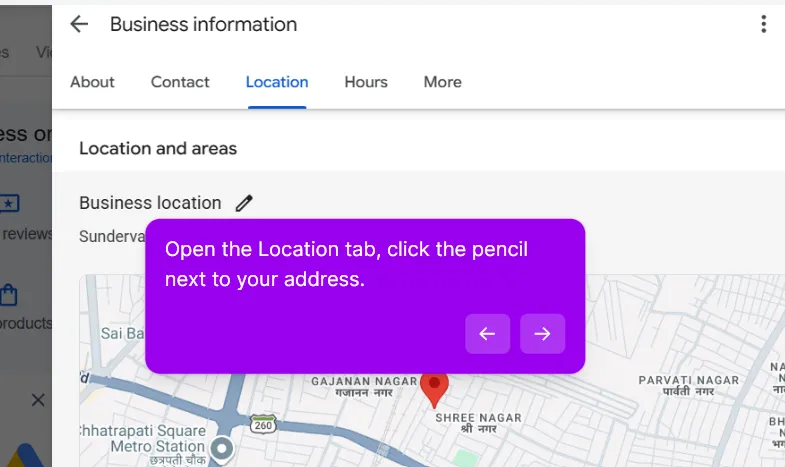
- Select Edit profile, then Location.
- Next to Business location, select Edit (the pencil).
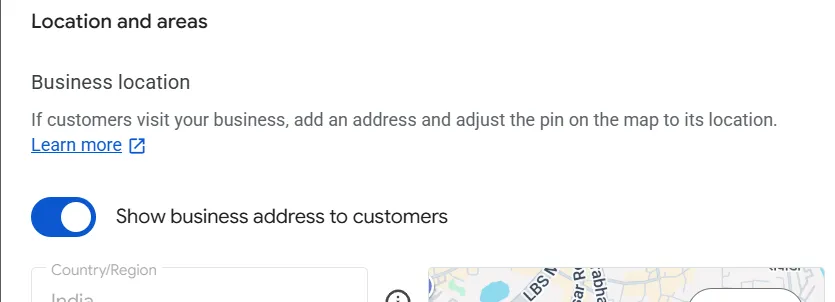
- Turn off Show business address to customers.
- Select Save.
Your profile now shows your service area instead of a street address. You’ll usually lose the map pin and the directions button too. Changes often show in about 10 minutes, but some go to review and can take up to 30 days. Check in an incognito window to be sure.
On the Maps app, tap Business, then Edit profile, then Location.
Will Google ask me to verify again?
Maybe. Google’s guidelines don’t say either way. Experts report mixed results, some say turning off address display triggers re-verification, and a platinum product expert has said that adding an address back might trigger it.
If it happens, it’s usually a video. Have your equipment, vehicle or signage ready. Our video verification checklist shows what to film, and this post helps if it gets stuck. Why an edit like this can trigger it is in our re-verification guide.
Address still showing? Check these in order
- A pending edit: Give it time. Some edits take up to 30 days.
- Two edits at once: Local Search Forum experts tie the “dashboard says hidden, public profile still shows it” bug to hiding the address while a service area edit is pending, or the other way round. Change one thing, wait until it shows, then change the next.
- An old duplicate: A second listing can keep your old address alive. Search Maps for your old address and phone number, then go through this guide find and merge it.
- A listings tool: If you use Uberall, Yext or similar, set the hidden address and service area there too, or it can push your old data back. Yext won’t sync a hidden address without at least one valid service area.
- Your website: Google says profile info is compiled from several sources, including your own website. Check your footer, contact page and LocalBusiness schema, and swap the street address for your city or service areas.
- Google Ads: Location assets pull your street address from your profile. If it only shows in ads, check the asset and the link in Google Ads.
- Still stuck after a few weeks: Use the Business Profile help form. Say that the dashboard shows it as hidden, the public profile doesn’t, and give the date of your change, with screenshots. If no reply from support, post in the Community.
As a last resort, some forum regulars re-enter the address originally used to verify, save it, wait for it to go live, then hide it again.
That can trigger re-verification, so only try it if you can pass verification at that address. My recommendation would be to try support first, and then GBP Help Community.
Remember before you make any changes
- Make it the only edit that day: Don’t change your name or category at the same time.
- Hiding can affect rankings: Sterling Sky saw rankings and calls drop after hiding on a profile that had shown its address. I’d screenshot your rankings and calls first so you can compare later.
- Moving as well? Don’t just edit the hidden address: Read the service-area move section first.
- Don’t flip back casually: Showing a home address again can trigger a suspension, and you’d have to hide it to get reinstated. See suspension recovery.
Privacy: what hiding doesn’t do
- Google still keeps your address. It’s hidden, not deleted.
- Other places can still show it. Your website, Facebook and directories won’t change on their own. BrightLocal has a list of sites that let you hide an address.
- Reviews can leak it. If a customer posts your address, see how to remove a review with personal information.
This post is one piece of a bigger playbook. The full guide covers the common Google Business Profile problems in one place, with the fix for each: The GBP cheat sheet.
Not sure whether hiding your address fits your business, or what to change first? Send us your profile and we’ll tell you. Cleaning your old street address out of directories is part of our listings clean-up service. Check my address plan


