
Why some old photos have no Delete button
Google only lets you delete photos added through your Business Profile. Photos posted from anyone else’s Google account (customers, Local Guides, or the previous owner’s personal account) count as user content. Google’s help page is clear that you can only delete media added from your own account.
This catches a lot of new owners. Product Experts on the Google forum explain that the previous owner’s photos can show publicly with a By owner tag, yet never appear in the new owner’s dashboard. No dashboard entry means no Delete option.
Their rule of thumb: if a photo isn’t in your own photo section, someone else uploaded it, and it has to be reported.
Not sure who posted a photo? On Google Search, open it and look at the bottom left corner. Google shows the photo source there.
How to remove old photos from your Google Business Profile
Step 1: Delete the ones you control
- Sign in with the account that manages the profile and search your business name on Google.
- On your profile, click Photos.
- Scroll to the old photo and select it.
- Click Delete.
No Delete option on a photo? Skip it here and move to the next step.
Step 2: Report the ones someone else uploaded
We’ve already walked through the report flow click by click. For old-owner and old-address photos, the reason you pick matters:
- Photos of your old address, or of the business that was there before you: pick Not a Photo or Video of the Place.
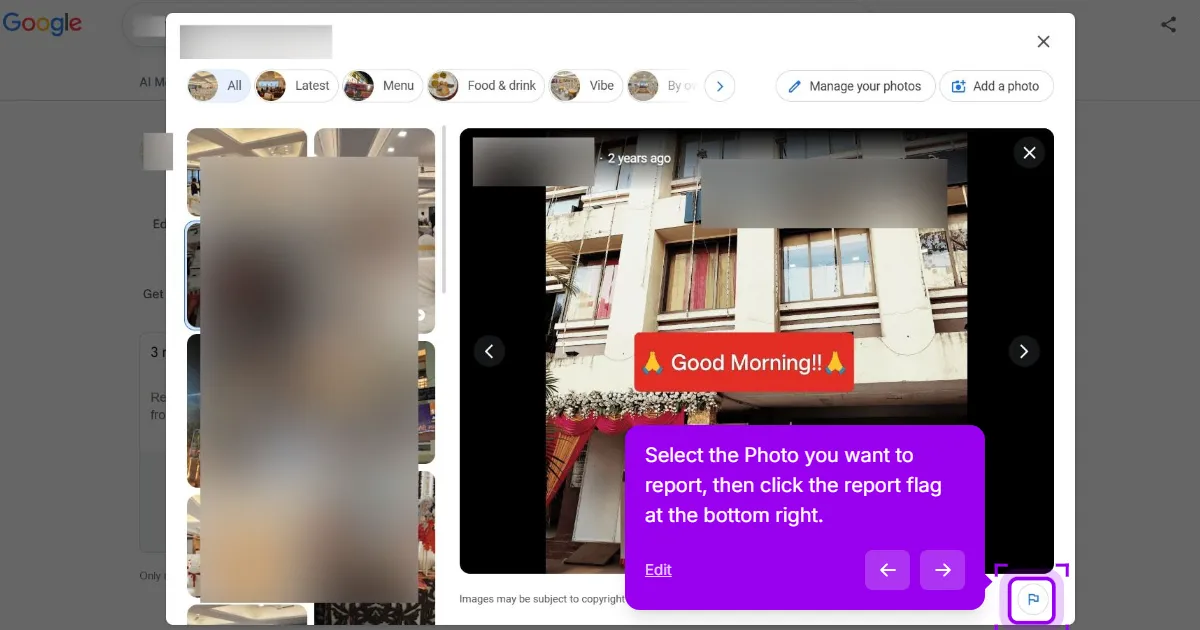
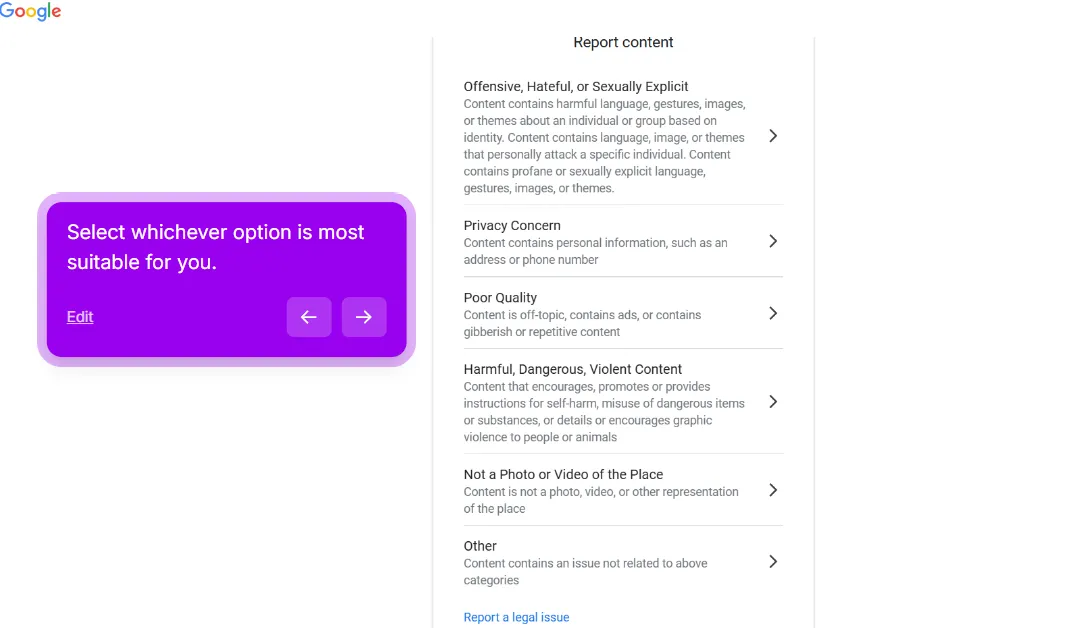
- Your own premises before a refit or rebrand: pick Other. Then see how to document an outdated photo.
Report each photo once. Google says sending several requests for the same photo can slow the review down.
Step 3: Ask the person who posted them
If the previous owner posted the photos from their own Google account, they can remove them in a couple of minutes. Send them these steps:
- On a computer, open Google Maps.
- Click Menu, then Your contributions.
- Open the Photos tab.
- On each photo of the business, click More, then Delete this photo.
This is often the fastest route after a friendly sale, and honestly I’d try it before anything else if you’re still on good terms.
Old building in See outside, or an old photo up top
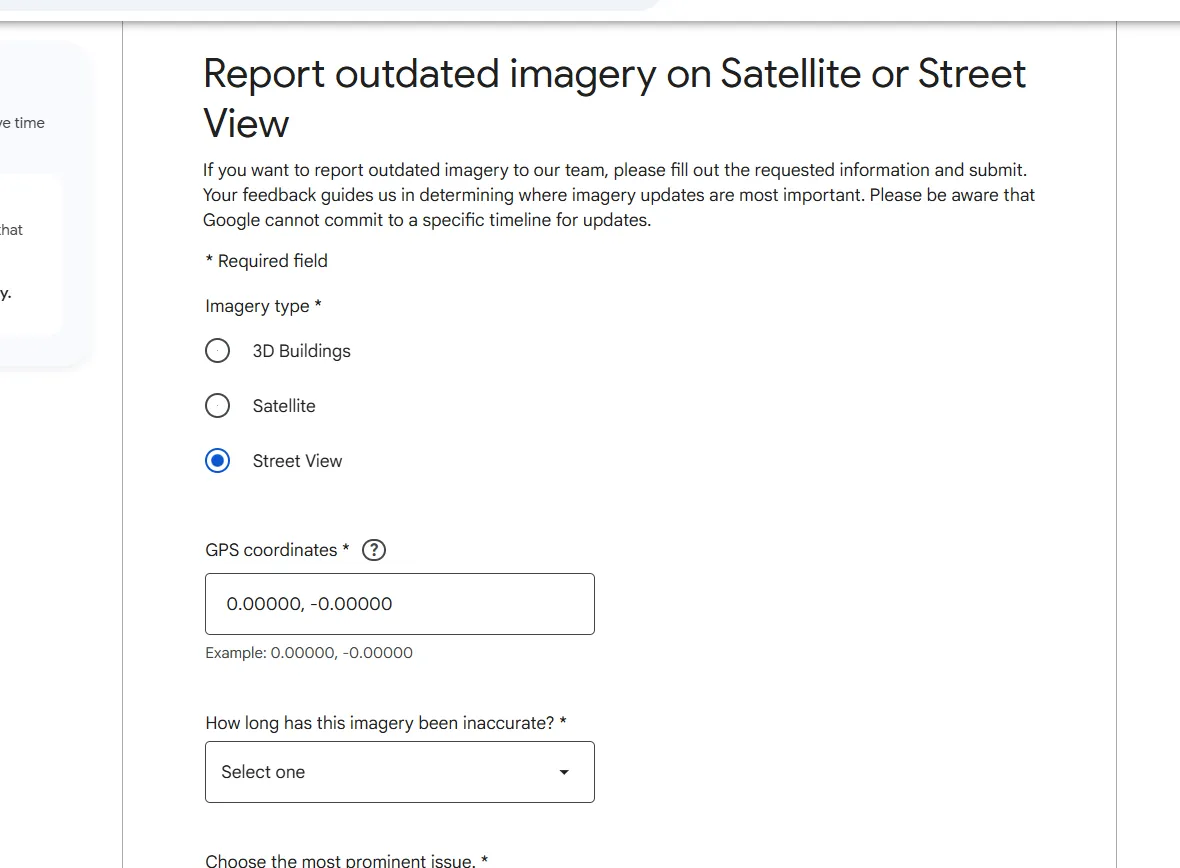
See outside (Search) or Street View & 360° (Maps): this is Google’s Street View imagery, not a photo anyone uploaded, so there’s nothing to delete or report. Google attaches the panorama nearest your map pin.
After a move, check the pin sits on your new entrance first. Our guide has the pin steps and what to do if the image is just old.
The first photo people see: set your own cover photo of the current business. Google says it may show a customer’s photo instead if your cover is low quality, so use a sharp, recent exterior shot. Then keep adding new photos so the old ones get pushed down. More on that here.
If your reports don’t work
Forum threads on this often run for months, and one owner has been at it for three years. So set expectations: Google says a review takes several business days, and removal isn’t guaranteed.
- Still up after a week or two: use Google’s inappropriate photos form. It asks for each photo’s URL and whether you’ve already flagged it, so copy the links from the photo viewer first.
- Turned down: what to put in a manual review request.
- Nothing moving at all: post in the Business Profile Community with your profile link and the photo links. A Product Expert can flag cases to Google.
Bought the business or moved? Your cleanup checklist
- Ownership: get primary ownership transferred to you rather than starting a new profile. How a handover works when a business is sold.
- Old name: new owner, same name means nothing to change. New name? Check whether Google treats it as a minor change before you edit.
- Address: if you moved, pick the route for your kind of move.
- Photos: delete yours, report the rest, as above.
- See outside: pin on your entrance, as above.
- Reviews: Google keeps reviews when only the owner changes and the name stays, and moves them with you when you relocate under the same name. Reply to old complaints to explain what’s changed. A full rebrand is different: see scenario 3 in our name guide.
- Fresh photos: add a current exterior, interior and cover photo.
What not to do
- Don’t start a new profile to get a clean slate. Google says not to create one because of a change in location or ownership, and you’d end up with a duplicate.
- Don’t report the same photo again and again. It can slow the review down.
- Don’t report accurate photos just because they’re unflattering. Google won’t remove them, and it wastes your reports on the ones that matter.
This post is one piece of a bigger playbook. The full guide covers the common Google Business Profile problems in one place, with the fix for each: The GBP cheat sheet.
Not sure which old photos you can delete and which need a report? Send us your profile and we’ll tell you the route for each. Once they’re cleared, adding fresh photos every month is part of our Google Business Profile service. Check my old photos


