
The business closed. You want it off Google Maps. You log into your Business Profile dashboard, find the profile, click “Remove,” and walk away. Six months later, the profile is still showing up on Google Maps with old reviews and outdated hours.
This is the most common mistake when closing a business profile. Removing a profile from your Google account does not remove it from Maps. The profile becomes orphaned, the data stays in Google’s index, and worse: someone else can claim it later if they have a connection to the address.
Here’s the correct sequence.
Why removing from your account isn’t enough
When you remove a profile from your Google account, you’re removing your management access. The profile itself, its address, reviews, photos, and Google’s index entry for that business location, all stay live.
A closed business doesn’t drop off Google on its own. A listing typically ends up in one of two states: still visible but marked “Permanently closed,” or removed entirely (gone from Search and Maps).
To get either outcome, you need to mark the closure or request removal, not just delete your access.
The two-step closure path
The click-by-click walkthrough at the top of this post shows the same clicks. The written steps and screenshots follow.
Step 1: Mark as Permanently closed
This is the first step regardless of what else you want to do.
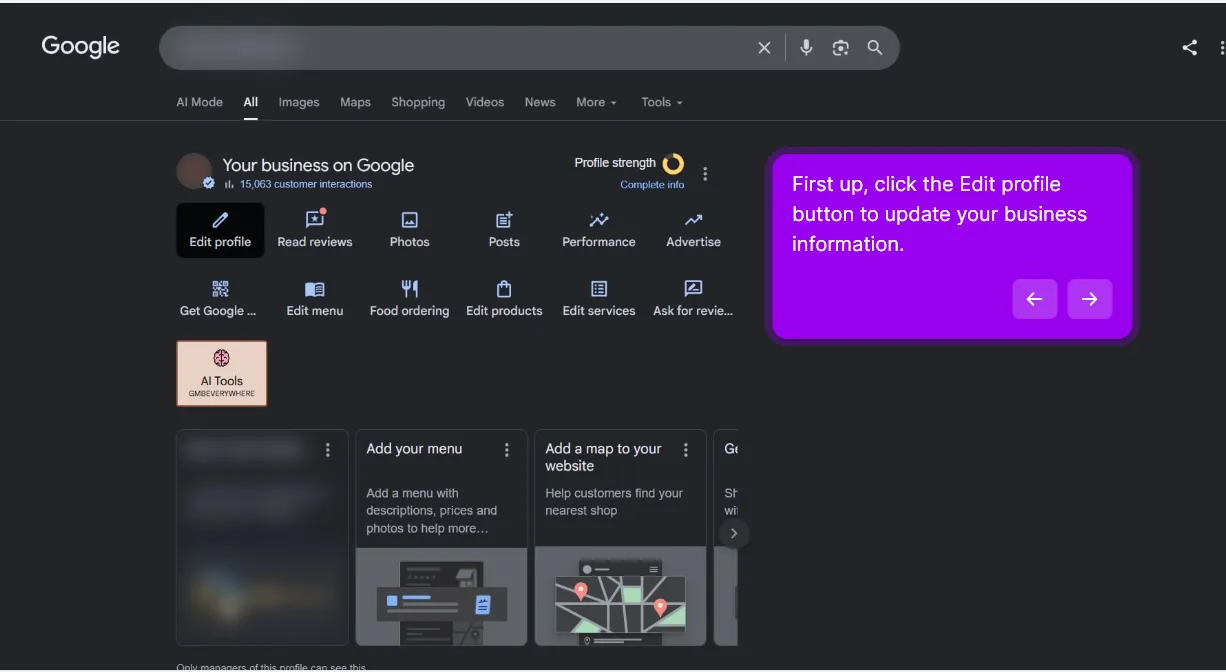
1. Sign in to your Business Profile dashboard and find the profile you’re closing. Search your business name on Google while signed in to the account that manages it. The “Your business on Google” dashboard appears at the top of the results. Click Edit profile.
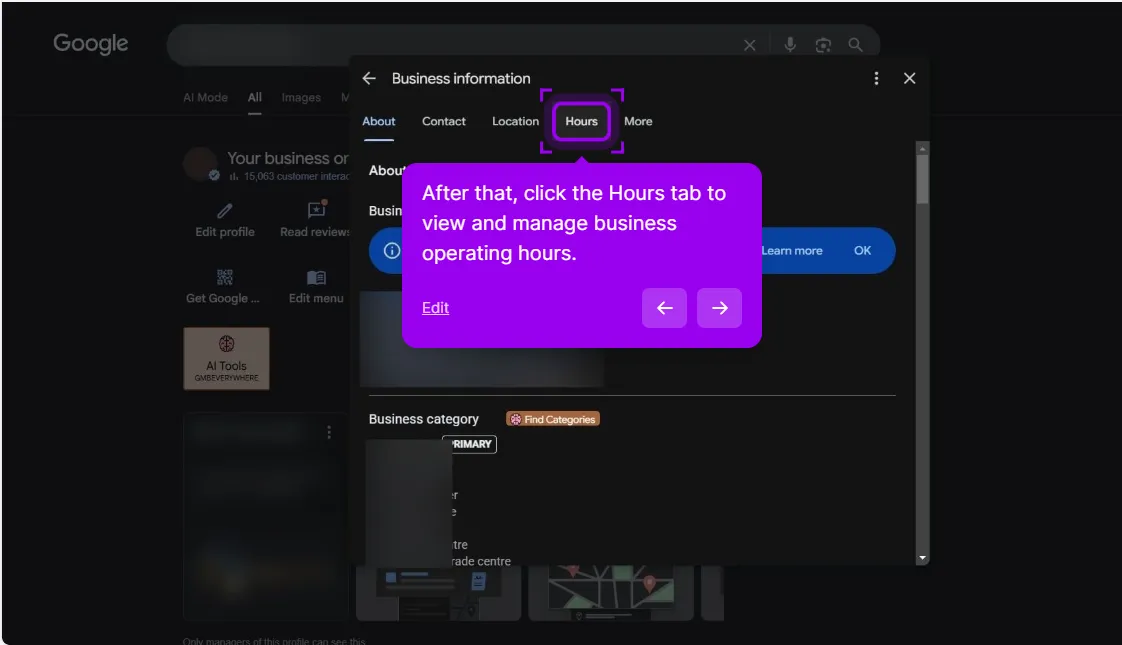
2. Open the profile’s edit menu and look for the hours option. In the Business information panel, click the Hours tab. The closed statuses live there, not under About.
3. Change the status to Permanently closed and save. Under Hours, Google lists Open with main hours, Open with no main hours, Temporarily closed and Permanently closed. Select Permanently closed (or Temporarily closed if the business is only shutting for a short period), then click Save.
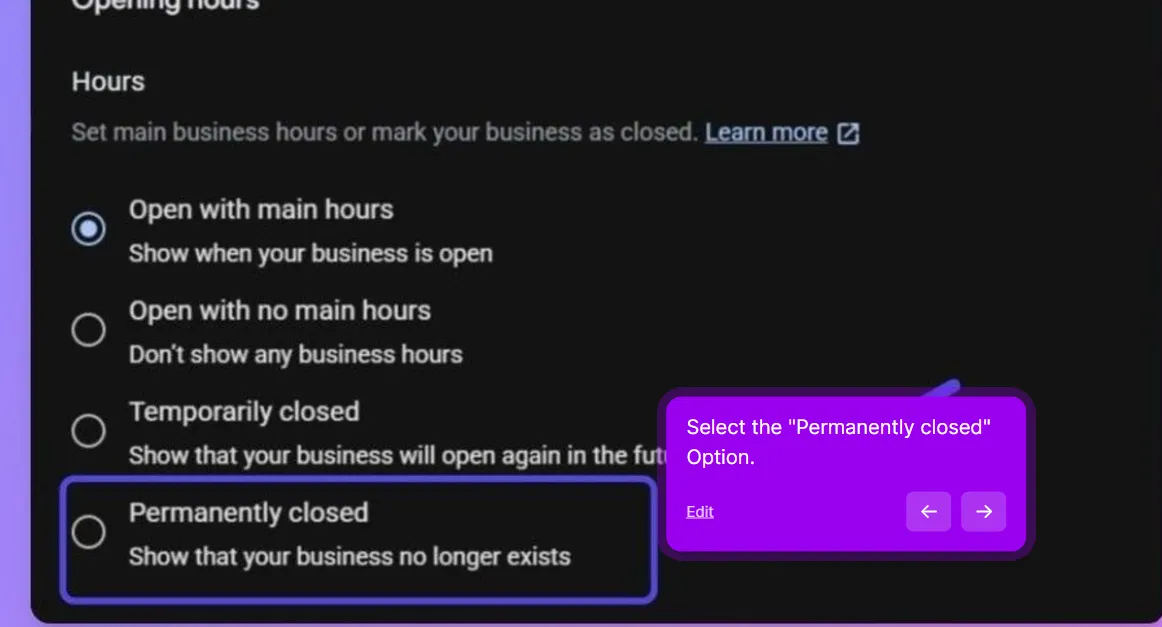
What this does: Google’s system flags the profile as closed. On Search and Maps, the listing will display with a “Permanently closed” banner. Customers can still see the location but won’t be misled into trying to visit. Once the status is saved, also tidy the access list: remove any managers who no longer need access to the closed profile.
For most business closures, this end state is ideal. It preserves historical reviews, warns customers, and retains data. Real estate buyers, potential tenants, and curious neighbors can still access information about what once existed.
Step 2 (optional): Request removal from Maps
If you want the listing fully gone, not just marked closed, but removed from Search and Maps entirely, do Step 1 first, then:
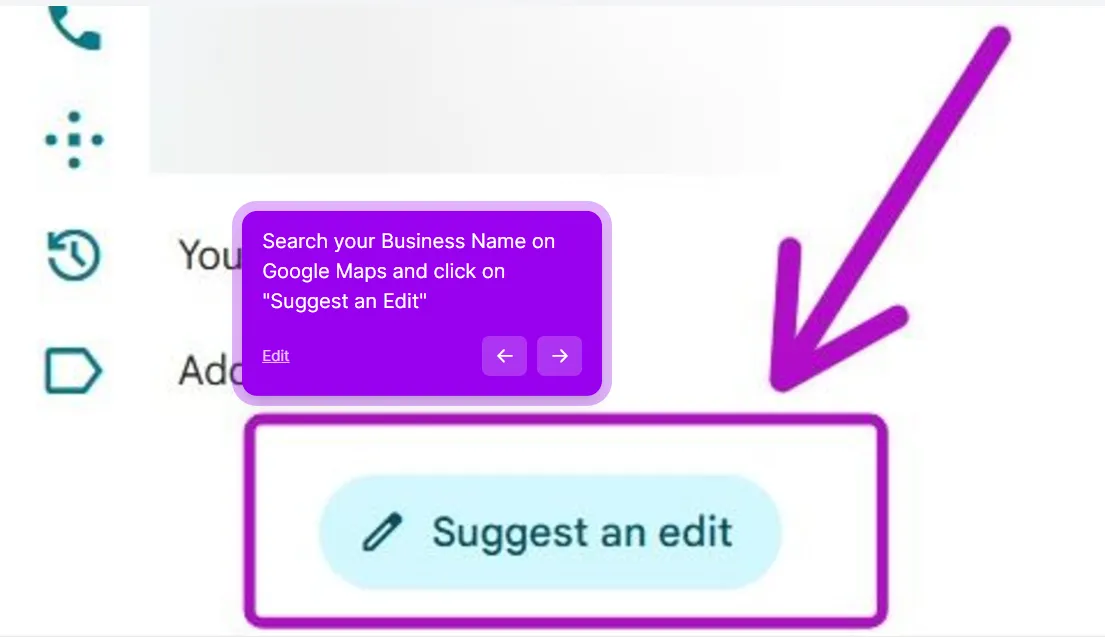
1. Open the listing on Google Maps in a browser and click Suggest an edit. Search your business name on Google Maps, open the listing, and scroll the side panel to the Suggest an edit button.
2. Choose “Place is closed or not here.” The Suggest an edit pop-up lists the name, category, address, hours, phone and website. The closure option is the last row.
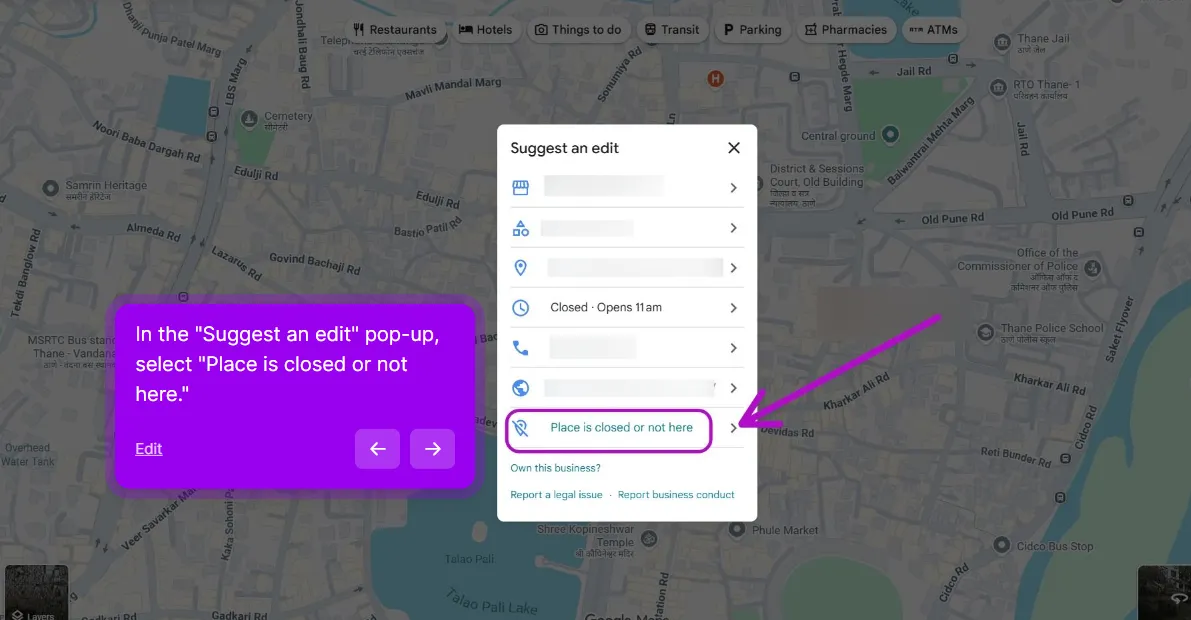
3. Choose “Permanently closed” or “Doesn’t exist here,” then submit. Under Operating status, pick the option that matches your situation. Submit with a brief explanation: business permanently closed on [date], location is now [vacant / different business / etc.].
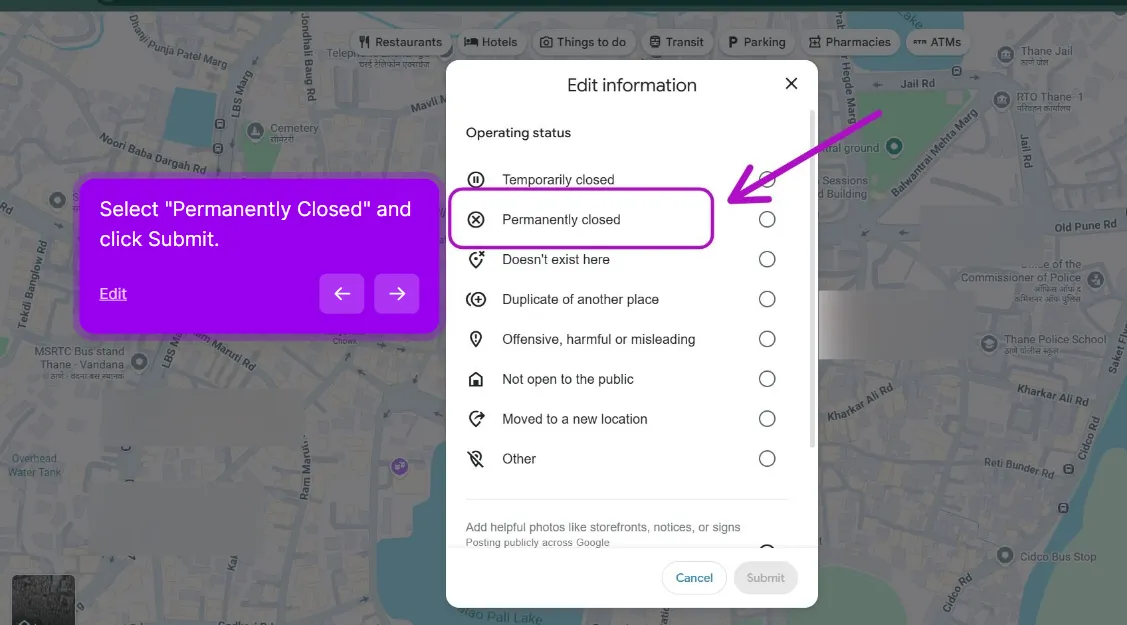
Google reviews the request and, if approved, removes the listing from Search and Maps. Google doesn’t publish a fixed turnaround, and in our experience it can take anywhere from a few days to several weeks, so check back rather than resubmitting. A removal is much harder to undo than the “Permanently closed” status, so treat this path as closer to permanent.
Full official policy: Request removal of a Business Profile from Google Search & Maps.
When to use which option
Use “Permanently closed” (no removal) for:
- Most business closures. Keeps the historical record, warns customers, doesn’t lose review history (sometimes useful for the owner’s personal record).
- Locations that are changing hands. If a new business is taking over, “Permanently closed” followed by the new owner verifying their own profile is the standard transition.
Use full removal for:
- Locations with no successor business. Building demolished, address no longer exists.
- Profiles created in error. You set up a profile that was a duplicate or mistake.
- Heavily attacked profiles. A profile that was the target of sustained review attacks where you’d rather it stop appearing entirely.
- Sensitive closures. Businesses closed under circumstances where you don’t want the listing remaining publicly visible (legal issues, personal safety, etc.).
What to do if you’ve already removed the profile from your account
If you removed the profile from your account before marking it closed, recovery is annoying but possible:
- Request access back. Search for the business on Google Maps. Click “Own this business?” or “Claim this business.” Follow the ownership request process. The full walkthrough, including what to do when the current owner ignores you, is in how to get ownership of a Google Business Profile back.
- Once you regain access, mark it “Permanently closed” or follow the removal path above.
If the profile no longer appears in search at all (which is rare but happens), contact support via the GBP Help Form and explain you need to formally close a profile you previously managed.
Things that make this worse
- Just removing the profile from your account. Most common mistake. Doesn’t remove it from Maps.
- Logging out and ignoring it. The listing remains live and can be claimed by anyone with a plausible connection to the address.
- Trying to remove via the “Suggest an edit” flow as a non-owner first. Without owner access, Google requires more proof. Get into the dashboard first.
- Writing “CLOSED” in your business name instead of using the closed status. Triggers a name policy violation and your profile may get suspended.
If that has already happened, the GBP suspension check will tell you whether the name is the likeliest trigger or whether something else is also working against the profile.
A note on selling vs. closing
If the business is being sold (not closed), the buyer should claim and verify the profile under their own ownership. Don’t mark it permanently closed in that case; transfer ownership instead.
The transfer flow:
- The buyer requests access via the Request ownership process.
- You (current owner) approve the transfer.
- The buyer becomes the primary owner. They can update business details to reflect their ownership.
- You can stay on as a manager during the transition, or remove yourself entirely.
This preserves the reviews and ranking history for the buyer, which is often part of the value of the sale.
This post is one piece of a bigger playbook. The full guide covers the common Google Business Profile problems in one place, with the fix for each: The GBP cheat sheet.


