
Does Google call to verify business hours?
Yes. Google may call the phone number on your Business Profile to confirm details. These calls are a normal check and don’t affect your account standing.
What a real call sounds like
- It’s usually a recorded, automated voice. Sometimes it’s a real person.
- It says it’s Google (often "Google Maps"), why it’s calling and that the call is recorded.
- It asks one simple question, like your hours this week or whether you offer a service.
Why Google calls
- To check your opening hours.
- To check stock of an in-demand product.
- To book an appointment for a customer.
- To ask about restaurant wait times for a customer.
- To confirm a price or whether something is available.
- Google avoids calling late at night or early in the morning, and it limits repeat calls for the same info.
Other real calls
- A Google Ads, Google Play or other account rep may call you.
- A Google support agent may call back if you asked for a call through the Business Profile help form.
What happens to your answers: Google may add them to your profile. Those changes show as Pending and can take up to 5 business days to review. If your profile is verified, Google may also publish a post for you and email you about it.
What Google never does on a call
This is the part to remember. Google says it will never do:
- Ask for payment, card details or a password.
- Ask for a verification code.
- Charge you to keep your Business Profile.
- Ask you to sign up for a service.
- Promise you a special or top spot on Google.
So if a caller asks for money to keep your business on Google, it isn’t Google. A Business Profile is free.
Two things don’t make a call real:
- They know your business name and address. That’s all public on your listing.
- Caller ID says Google. Scammers can fake the number that shows up.
Got a verification code you never asked for, then a call asking for it? That’s the big one. Someone else has likely started verifying your listing and needs your code to finish. Don’t share it. Google says not to share it with anyone, even people who manage your profile.
How to check if the call was really Google
Don’t check through the caller. Check your profile yourself.
- Hang up. Don’t press any buttons, even if the voice tells you to. Pressing buttons can lead to more of these calls.
- Go to business.google.com and sign in with the Google account that manages your listing.
- Open your profile. Look for any notice, like a verification request or a suspension. A real problem shows up here, not on a cold call.
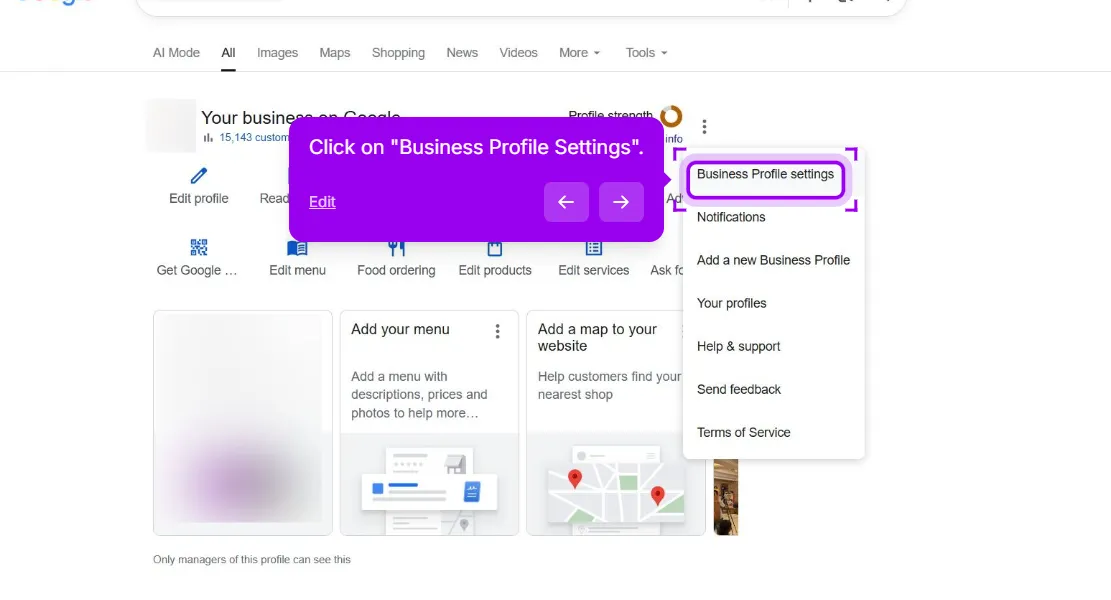
- Select More, then Business Profile settings, then People and access.
- Check every owner and manager. You should know each one.
- Go back to your profile and check your name, phone number, website and hours for edits you didn’t make.
Did you ask Google support for a call through the help form? Then a callback is expected. Even so, a real agent won’t ask for your password or code.
All clear? Then the call was noise. I’d still tell whoever answers your phone the rules above, since these calls rarely stop at one.
How to stop and report Google scam calls
Report fake "Google" callers to Google
Use Google’s third-party complaint form. Google asks you to include:
- The caller’s company name and contact details.
- Any emails or documents they sent you after the call.
- Anything else about the call, like the date, time and what they asked for.
Many of these callers use numbers that can’t be traced, so Google may not be able to stop them. Your report still helps it track the pattern.
In the US, you can also report to
- The FTC at donotcall.gov or 1-888-382-1222.
- The FTC at ReportFraud.ftc.gov, especially if you lost money.
- The FCC, for repeat robocalls.
- Scam texts: forward them to 7726 (SPAM).
One catch: the Do Not Call Registry is for personal numbers. If your business line is on your listing, registering it won’t do much. Ask your phone company about blocking and spam labels instead.
Already paid or shared a code?
Don’t panic, but act the same day.
If you paid
- Call your bank or card company on the number on the back of your card. Ask them to stop or reverse the payment.
- Report it at ReportFraud.ftc.gov if you’re in the US.
If you shared a code or approved an access request
- Go to your profile, then More, Business Profile settings, People and access.
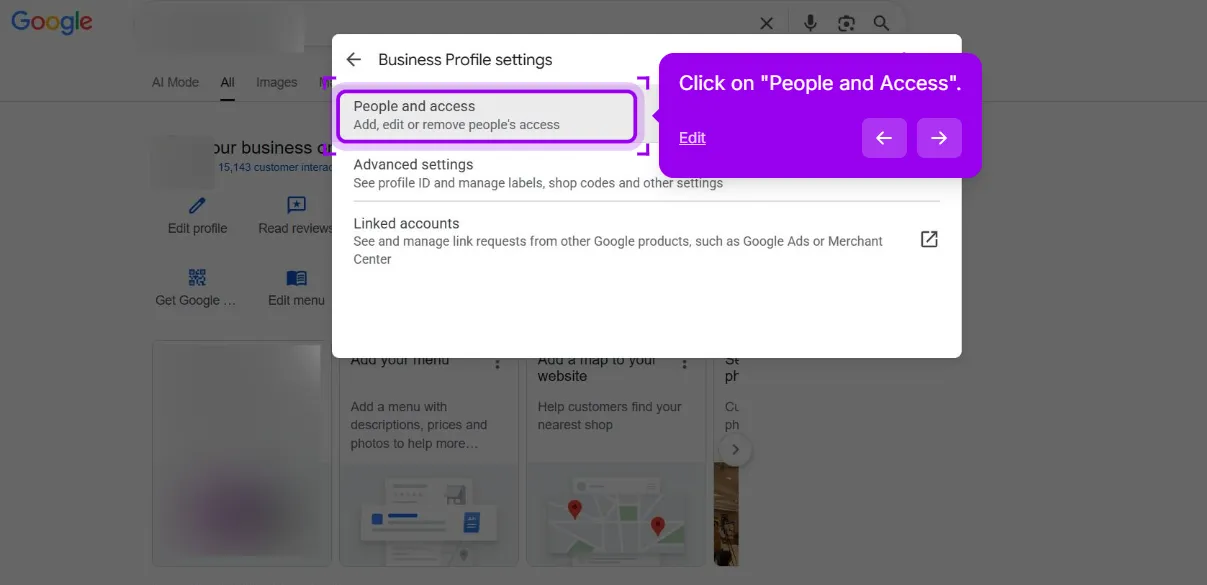
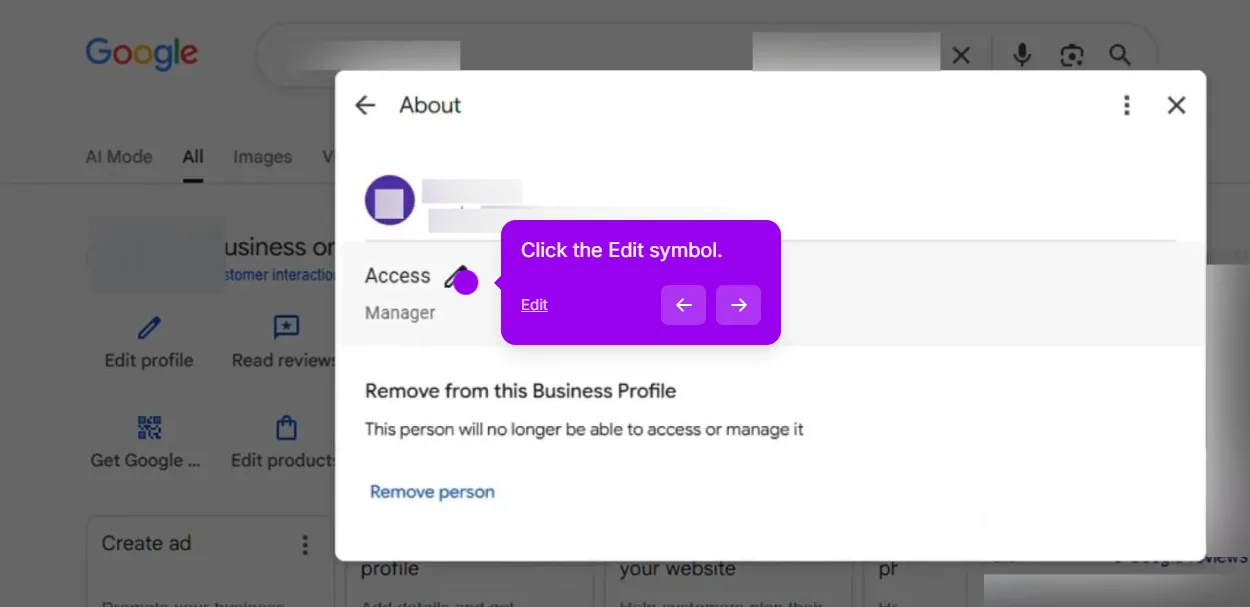
- Click the person, then “Remove person”. Remove anyone you don’t know. Only owners can remove people.
- Check your name, phone number, website and hours. Fix anything you didn’t change.
- Change the password on your Google account and turn on 2-Step Verification.
Timing helps you here. A new owner or manager has to wait 7 days before they can remove other people or take primary ownership. Move fast and you keep control.
If you’re already locked out, follow our guide to getting access to your Google Business Profile back.
If the profile got suspended after strange edits, start with our suspension recovery guide.
What not to do
- Don’t call back numbers left in voicemails.
- Don’t press 1 or 9 on a robocall, even to opt out.
- Don’t approve owner or manager requests from people you don’t know.
- Don’t give a code, password or card number to anyone who calls you first.
If an agency helps with your listing, add them as a manager from your own account. Nobody needs your code or password to help. To keep access tight over time, see our guide on transferring ownership and managing access. What each role can and can’t do is in owner and manager permissions.
This post is one piece of a bigger playbook. The full guide covers the common Google Business Profile problems in one place, with the fix for each: The GBP cheat sheet.
Had a call and not sure it was Google? Tell us what the caller said and we’ll tell you whether it matches how Google contacts businesses. If you’d like a second pair of eyes on your profile every month, our Google Business Profile service goes through suggested changes with you before anything is accepted. Check this call for me


